Vlookup Part 1
Vlookup and the corresponding Hlookup are a new to Excel user’s best friend and over time will become one of your least desired solutions.
Vlookups are used to quickly pull data out of large data tables and are often the go to formula for almost anything an analyst does. Understanding Vlookup is paramount as most Excel users will employ this method extensively and, therefore, you will need to understand what is doing and how to navigate it as well as solve for its limitations.
How the Vlookup works:
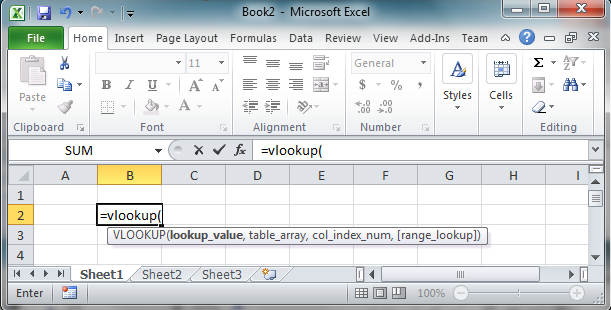
When you type in =Vlookup( in Excel you will be greeted with the formula format:
=vlookup(Lookup_value, table_array, col_index_num, [range_lookup])

Of course what this means is obvious to a new user! Great so now what?
Data:
You probably need to find a particular data point.
Likely your team or boss asked you to find how much of item X was sold on date Y in region Z or some other business scenario. So here you have a lookup item and some limitations. Before we dig deep let’s start with the item lookup.
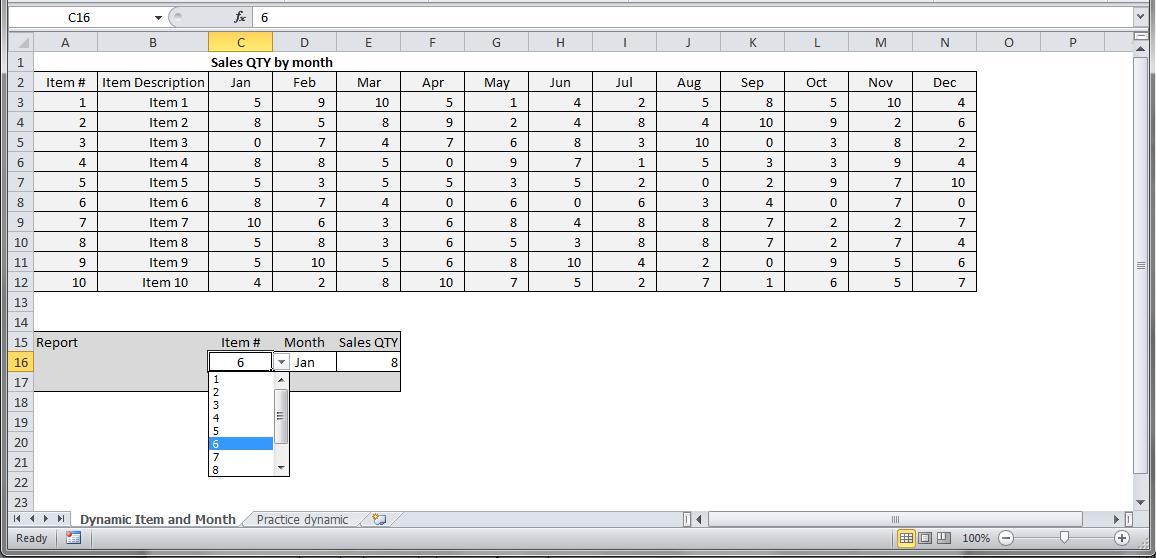
Assume your company has 10 items and the all sales data is kept in a simple table like below:
(Click here or the image for the sample file to play with housed on Google Drive)
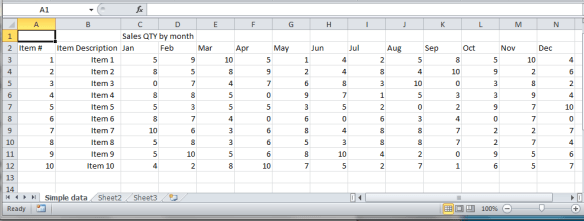
In the table above you have sales quantity data for item#’s one through ten and by month.
To answer your boss’s request your Vlookup formula will need to be limited by which item you need and then which month you need.(For database users the Vlookup is a much like an SQL Select Where statement)
The formula:
vlookup(Lookup_value, table_array, col_index_num, [range_lookup])
Lookup_value: The selected item you need to find data for
Col_index_num: The column where the date you need data is located
Table_array: Excel description for the table–its spreadsheet location. We will tackle this in a minute.
[range_lookup]: Set this to False–False returns exact data
Suppose we want Item 1 sales quantity in January. Our Lookup value can be either the Item # or Item Description. As long as we have one of the two we can lookup that item.
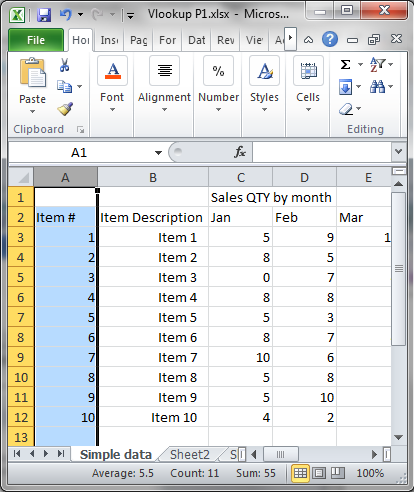
Let’s start with the Item # which is in column A. I have the reference column highlighted in the image below.
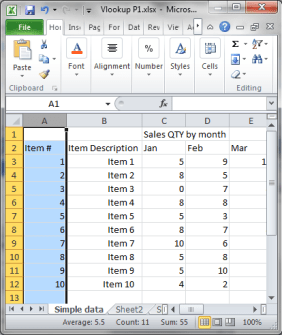
Your data is to the right of column A. Columns are sequential with the first column = 1. We want January data. Jan is column C, which is the 3rd column of the table so the column # = 3.
(Note it is important that you are counting column position from the lookup_value column as a table may not start at column A).
We now know:
Lookup_value is 1
Col_index_num is 3
To complete the formula we need the Table_array.
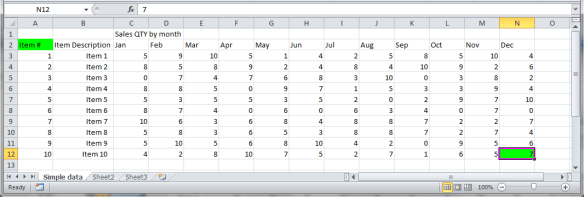
A table array is the start and stop cells designating the location for the data table. In the table we are using the table starts at cell column A and cell row 2. Excel’s naming convention for cell location is column letter then row # thus A2.
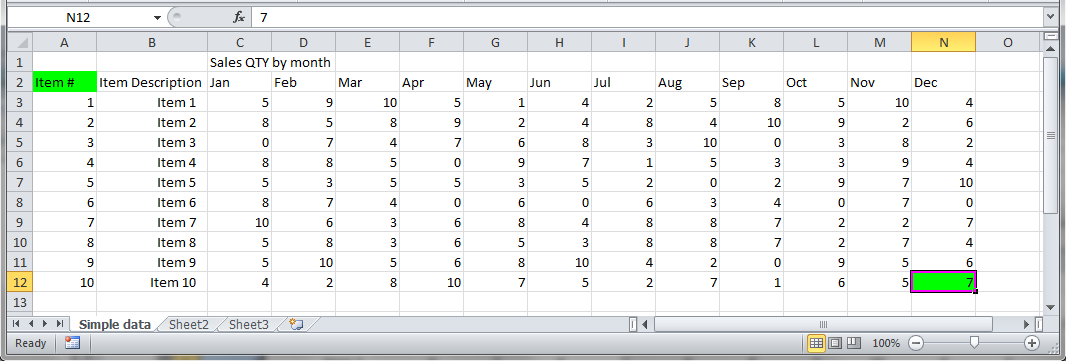
In the below picture I highlighted the tables beginning cell and end cell in green. If you select a cell you will see the cell name populate in the area above the spreadsheet to the left. In this case I will select cell N12. You will also see the column and row indicators highlighted on the edges of the spreadsheet as well as N12 in the left top of the screen.
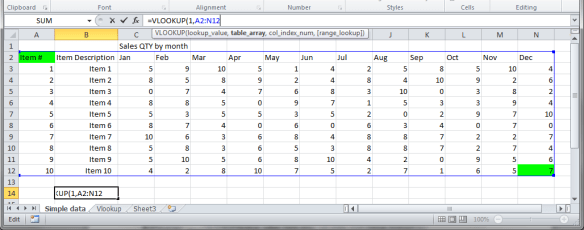
To define a range or array we need both the start and end cell names joined together with a colon. Thus this table range is
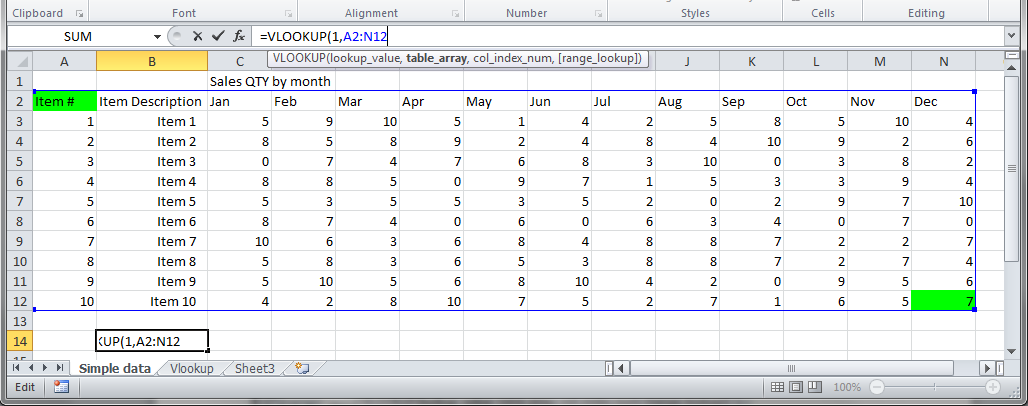
A2:N12
Notice Excel draws a blue outline around your referenced range:
Note: This range or array reference is referred to as an unanchored range. Some techniques in Excel will cause your unanchored reference to change when using drag, copy/paste, etc. Be sure to check your references.
You may opt for the anchored version which forces the reference to remain unchanged by adding in $ before the column and row indicators like so:
$A$2:$N$12
You can anchor by typing the dollar signs or by pressing F4. You can anchor the column, the row or both, Highlight the A2:N12 and press F4 1 time to anchor both (details for another post as to how, when and why).
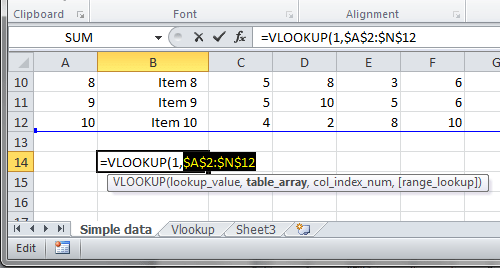
Your formula will now look like this:
=VLOOKUP(1,$A$2:$N$12,3,False)
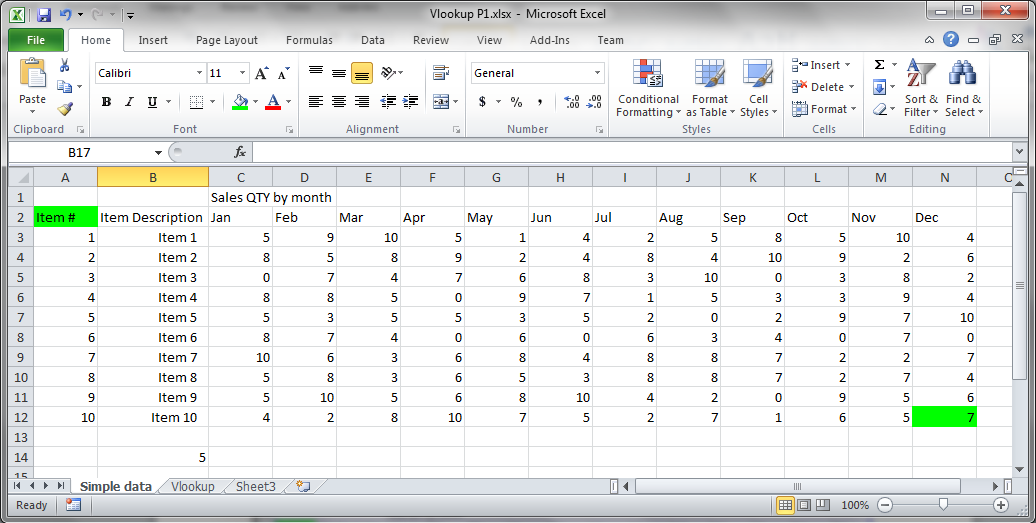
The output of this formula should be 5. Hit enter and you will see the answer:
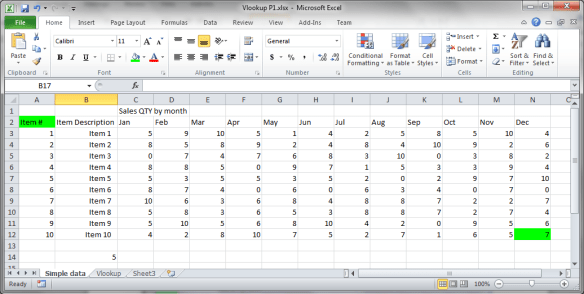
Congratulations you have now used the Vlookup. Try one of my next guides to see what you can do with Vlookups!
Please Look at my additional posts as you delve into VLookups:
Part 2
Part 2 Enhancements
 Excel-i-rate