Vlookup: Learn it, Love it and Leave it… Part 2 Enhancements

In Part 2, I showed you how to add the dynamic aspects to a Vlookup formula, but we left a lot of room for error. In particular the user may enter data that cannot be found in the data. I showed how entering an “a” for item # failed, likewise the user may wish to enter January, not knowing or realizing Jan is the column header. Part 2 Enhancements shows you how to add validation rules to speed reporting by helping the user enter only what is needed.


Tools to be used: Data Validation.


First we want to be sure that the user only selects valid data.

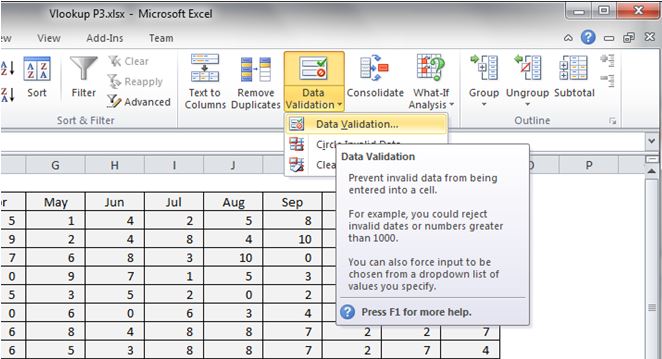
To do this we will look at our two selections we made Item # and Month in cells C16 and D16. Select cell C16 and then go to:

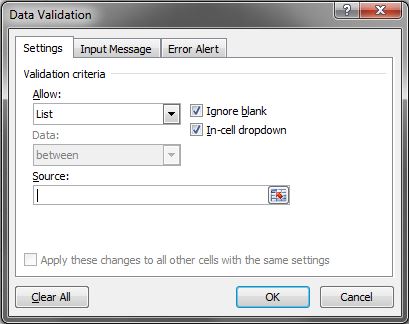
Ribbon Data tab >> Data Validation >> Validation Criteria >> select List

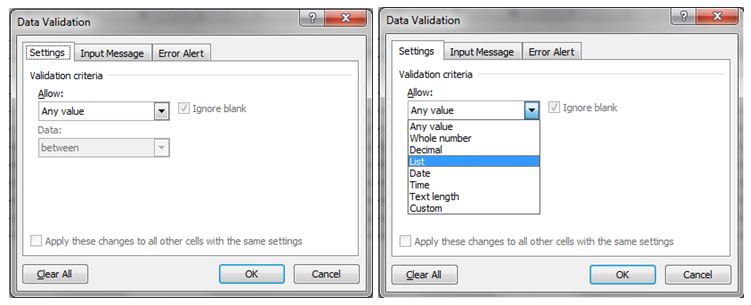
Click on Data Validation to open the contextual/dialogue box for your inputs:

DataValidation

 In the dialogue box navigate to the Allow: box.

Use selection box by activating the drop down and then select List.

DataValidationList

In Source:  enter the limited range (array) that has all of your items.

Data Validation List Source

For this example we will use the data table itself. In more advanced files we would use a control table to limit our possible items from a master list.

We will enter: $A$3:$A$12.


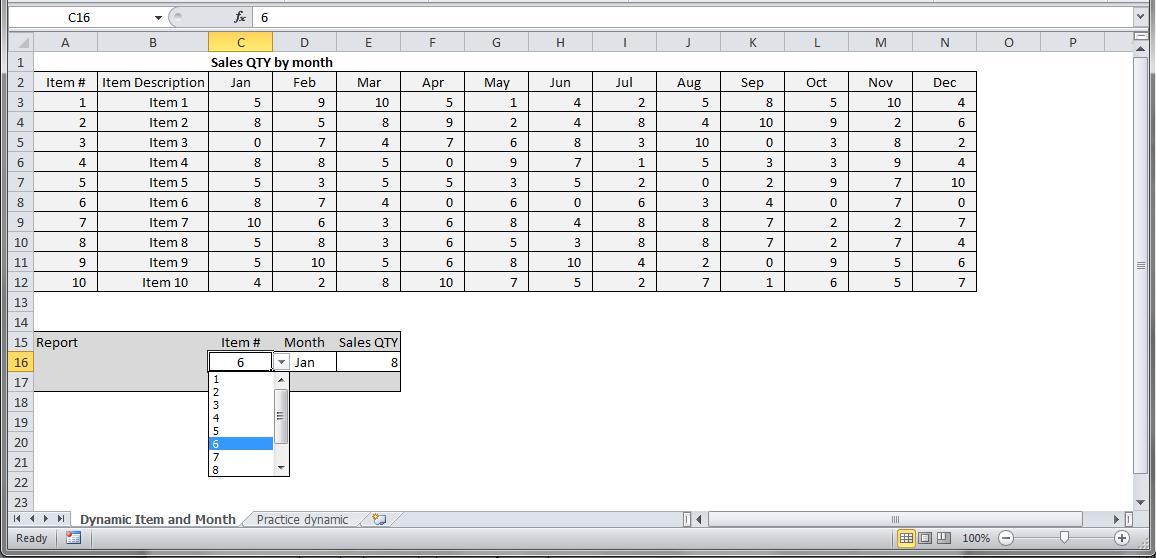
Once you hit enter, the cell C16 will now show a drop down arrow allowing you to select only what is in the list you referenced.

Data Validated Cell


You can do the same for the Months by selecting cell D16 and applying the list limitation with the source set to $C$2:$N$2. You can either manually type this or select the range with your mouse. Use the Practice tab of the linked file to build your own.


Congratulations, you have now limited the user entries and also helped ensure they are selecting the right items. You are on your way to building reports.

Vlookup: Learn it, Love it and Leave it… Part 2

Vlookup Part 2

In Part 1, we learned how to find a data point by declaring a table array or range, using a lookup column and setting which data column we needed to pull data from. That was easy enough, but most data tables are not so easy to use and as an analyst we often require lots of data quickly. To enable quick data retrieval we should employ a dynamic and hopefully scalable method. We must add dynamic abilities to our formulas to speed data capturing for reporting.

Tools:

Tools to be discussed are referencing cells for data and how to isolate the needed columns.

In part 1, we coded our formula to directly look for item 1 using the formula:

=VLOOKUP(1,$A$2:$N$12,3,False)

While this worked great as an Ad-Hoc data lookup, it fails to very be useful. References are hard coded and if using many Vlookups, there will be a lot of downtime to change every formula to generate new results.

Usually analysts need to answer multiple questions and create reports showing lots of data points. Here we will adopt a reference method to allow the formula to become dynamic.

Open and download the Vlookup P2 file to follow along. You will see I added the Report section:

VlookupP2P1

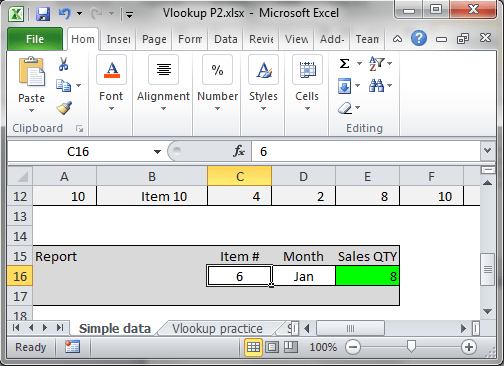
The report section will allow you to change what you are looking up. I like to grey out non-input cells and leave input cells white in my user entry areas. In this case the user can change the Item # and Month. First we will discuss the Item Number reference and how this works.

I selected the item# input cell and you can see Excel references it as C16 in the top left of the screen:


You can use this as your reference id in the Vlookup formula:
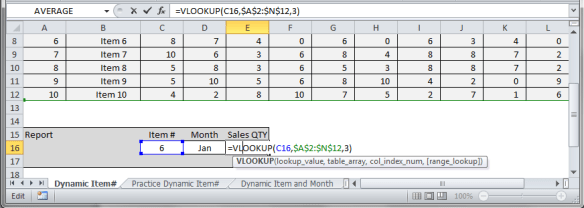
Notice the Lookup_value is C16 and Excel color codes the cell reference in the formula and the corresponding cell is outlined in the same color.

The Vlookup formula is now dynamic as to what Item # you can look up. You can enter anything in cell C16, but the formula will only return data for valid references. Try entering 11 or a letter.

VLookupp2p6

Your formula will return the error code #N/A.

Now that we have made the Item selectable, let’s move onto the column. Currently we are using a hard reference for the column (col_index_num).

Our current formula is:

=VLOOKUP(C16,$A$2:$N$12,3,False)

Remember: vlookup(Lookup_value, table_array,  col_index_num, [range_lookup])

Although the Col_index_num = 3, we want to make the col_index_num equal to the column position that corresponds to the Month input in Cell D16. Unlike the Item # reference, we cannot just reference Cell D16 for the col_index_num.


A brief discussion of how the C16 reference works:

Using the file linked above:

In any cell type =C16 and you will see the contents of C16 displayed.

In another cell enter =D16 and you will see the contents of D16 displayed. D16 happens to be “Jan” which is the column we want.

Notice, however, that the formula requires a number for the col_index_num, not the Month name. You could enter a number in the Month box, but this may not be the best method. Month #’s will not be the actual column position. Most people would think 1 = Jan, in this case 3 = Jan.

You could write the formula like so:

=VLOOKUP(C16,$A$2:$N$12,D16+2,False)

By using the offset adding 2 you can now select 1 for January and 2 for February, but this is not a good practice as the table may change and the +2 offset is not dynamic—meaning it will not adjust to any changes in the table.


How then will we make the Month selection dynamic? Use the Match function.

=Match(Lookup_value, Lookup_array, [Match_type])

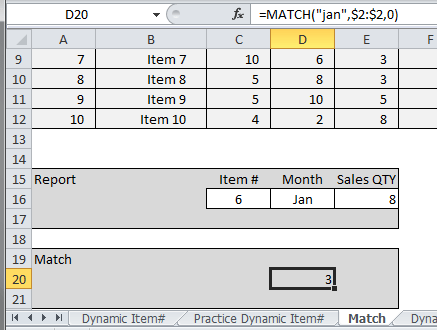
I added a work area to the spreadsheet for trying out the match function:
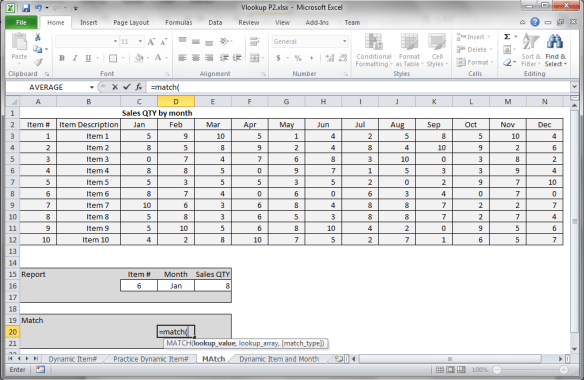

When using the Match function the function looks through an array and finds if there is a match for you input and then returns the index position, which means the numerical position from start in which the data point was found.

Here we want to find the match for Jan in row 2.  Since we are using a text string we have to tell Excel it is text by encapsulating Jan in quotes “Jan”.

Note: Capitalization does not matter in Excel for matching.

&

Single quotes  in front of data as well as preceding and trailing blank spaces will break a lookup/match so look for these if your data is not coming to you.

Lookup_value will be “jan”.

Lookup_array is 2:2 because the months are found in row 2.

Note: 2:2 is the range of cells that might contain the item we are looking up. This must be a single line or column—unlike a table, you can only reference a single row or single column. To declare the row as a range, you tell Excel it starts in row 2 and ends in row 2 and join the start and stop with a colon, thus 2:2. You can use the anchored version $2:$2.

[Match_type]  is optional according to the Excel hint [ ]’s means you can omit for the function to work. To generate the correct output the match_type is very important.

0 = exact match, which is what analysts usually need.
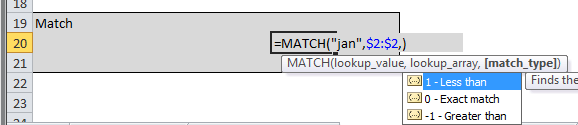
=MATCH(“jan”,2:2,0)

Again a good practice is to anchor your range/array.
.

=MATCH(“jan”,$2:$2,0)

The output of the formula is 3, which tells you the column index position is 3.


We can take the entire match formula and embed it into the vlookup in place of the 3. The new formula will look like this:

=VLOOKUP(C16,$A$2:$N$12,MATCH(D16,$2:$2,0),False)
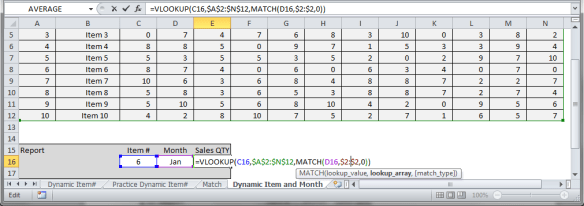
 

You now have a fully dynamic lookup formula. Play with the linked file and build your own formulas.
Vlookup: Learn it, Love it and Leave it–Part 1

Vlookup Part 1

Vlookup and the corresponding Hlookup are a new to Excel user’s best friend and over time will become one of your least desired solutions.

Vlookups are used to quickly pull data out of large data tables and are often the go to formula for almost anything an analyst does. Understanding Vlookup is paramount as most Excel users will employ this method extensively and, therefore, you will need to understand what is doing and how to navigate it as well as solve for its limitations.

How the Vlookup works:

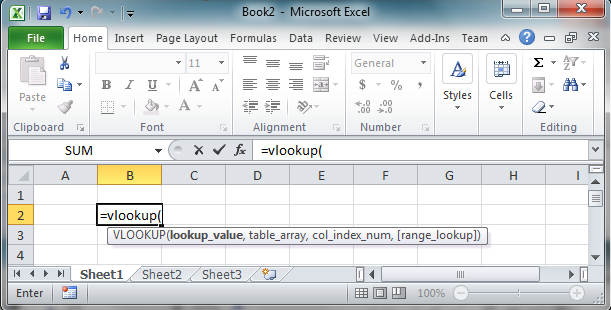
When you type in =Vlookup(   in Excel you will be greeted with the formula format:

=vlookup(Lookup_value, table_array,  col_index_num, [range_lookup])

 Vlookup

Of course what this means is obvious to a new user! Great so now what?


Data:

You probably need to find a particular data point.

Likely your team or boss asked you to find how much of item X was sold on date Y in region Z or some other business scenario.  So here you have a lookup item and some limitations. Before we dig deep let’s start with the item lookup.

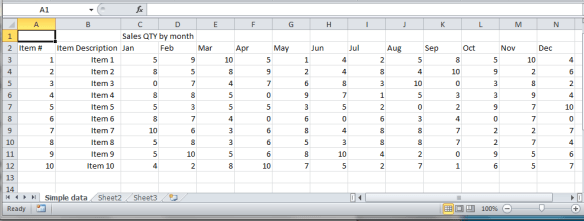
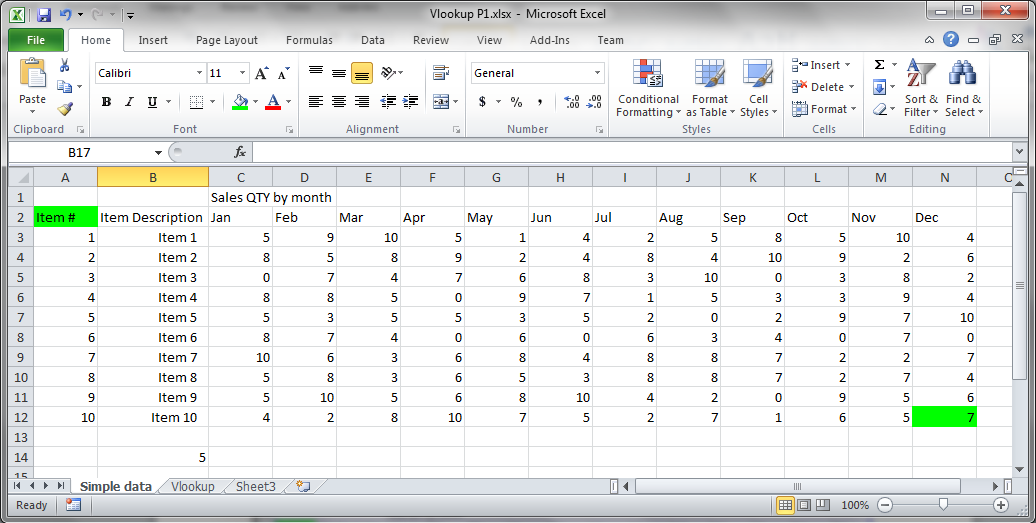
Assume your company has 10 items and the all sales data is kept in a simple table like below:

(Click here or the image for the sample file to play with housed on Google Drive)

Simple Table

In the table above you have sales quantity data for item#’s one through ten and by month.

To answer your boss’s request your Vlookup formula will need to be limited by which item you need and then which month you need.(For database users the Vlookup is a much like an SQL Select Where statement)

The formula:

vlookup(Lookup_value, table_array,  col_index_num, [range_lookup])

Lookup_value: The selected item you need to find data for

Col_index_num: The column where the date you need data is located

Table_array:  Excel description for the table–its spreadsheet location. We will tackle this in a minute.

[range_lookup]: Set this to False–False returns exact data

Suppose we want Item 1 sales quantity in January. Our Lookup value can be either the Item # or Item Description. As long as we have one of the two we can lookup that item.

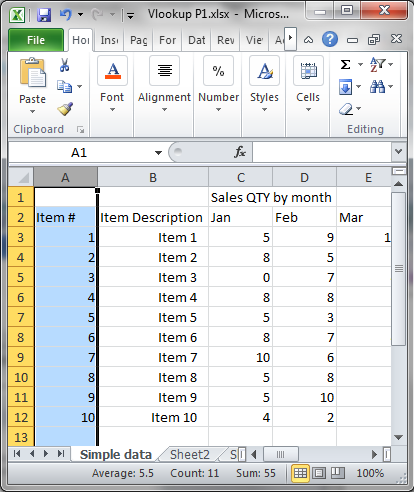
Let’s start with the Item # which is in column A. I have the reference column highlighted in the image below.

Selection column

Your data is to the right of column A. Columns are sequential with the first column = 1. We want January data. Jan is column C, which is the 3rd column of the table so the column # = 3.

(Note it is important that you are counting column position from the lookup_value column as a table may not start at column A).


We now know:

Lookup_value is 1

Col_index_num is 3

To complete the formula we need the Table_array.

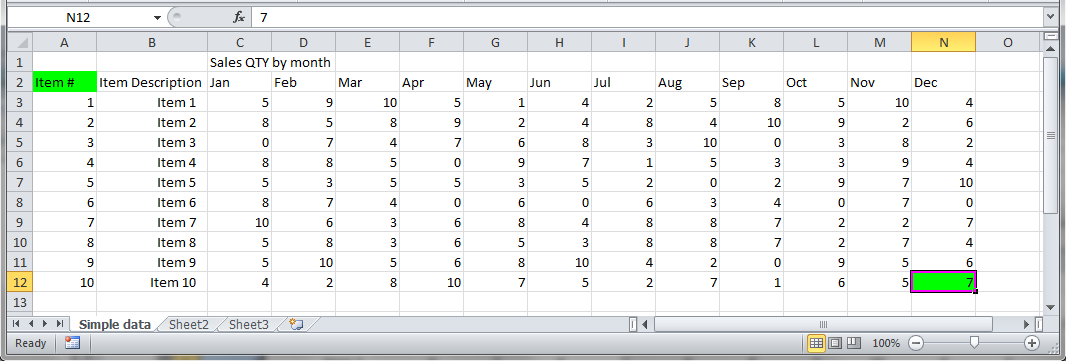
A table array is the start and stop cells designating the location for the data table. In the table we are using the table starts at cell column A and cell row 2. Excel’s naming convention for cell location is column letter then row # thus A2.

In the below picture I highlighted the tables beginning cell and end cell in green. If you select a cell you will see the cell name populate in the area above the spreadsheet to the left. In this case I will select cell N12. You will also see the column and row indicators highlighted on the edges of the spreadsheet as well as N12 in the left top of the screen.

Table array

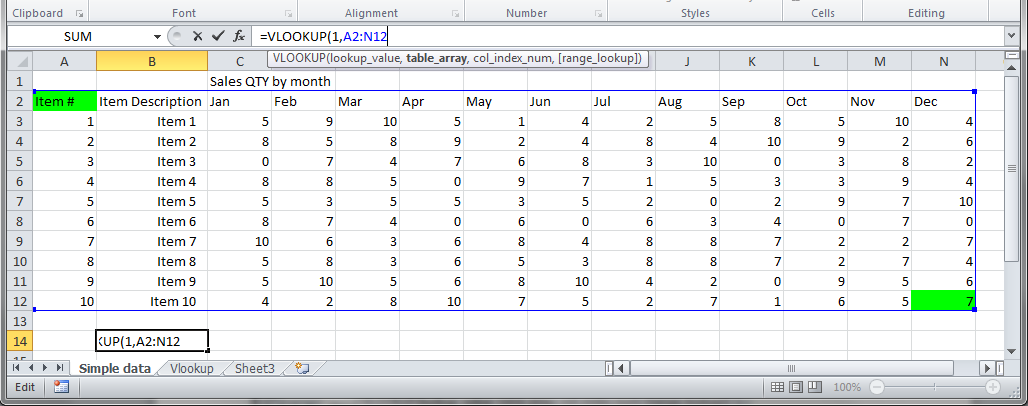
To define a range or array we need both the start and end cell names joined together with a colon. Thus this table range is

A2:N12

Notice Excel draws a blue outline around your referenced range:

Blue Box

Note: This range or array reference is referred to as an unanchored range. Some techniques in Excel will cause your unanchored reference to change when using drag, copy/paste, etc. Be sure to check your references.

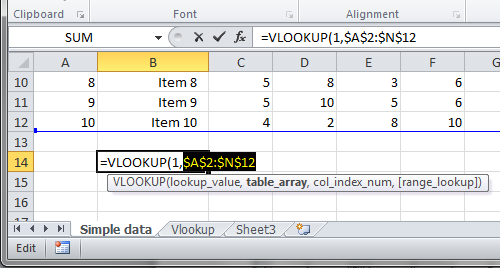
You may opt for the anchored version which forces the reference to remain unchanged by adding in $ before the column and row indicators like so:

$A$2:$N$12

You can anchor by typing the dollar signs or by pressing F4. You can anchor the column, the row or both, Highlight the A2:N12 and press F4 1 time to anchor both (details for another post as to how, when and why).

 Anchor

Your formula will now look like this:

=VLOOKUP(1,$A$2:$N$12,3,False)

The output of this formula should be 5. Hit enter and you will see the answer:

Answer

Congratulations you have now used the Vlookup. Try one of my next guides to see what you can do with Vlookups!

Please Look at my additional posts as you delve into VLookups:

Part 2

Part 2 Enhancements