Tableau is a great visualization tool, but as with all software, we must be careful with verifying the results
Applies to:
Extracted data, not Live data
Decimal numbers
Tableau Idea– Please go here and upvote the enhancement
https://community.tableau.com/ideas/8036
Tableau Support
Case: 03336687
Case Description: Decimal 2, fields upon calculation resulting in scientific notation results
Problem statement:
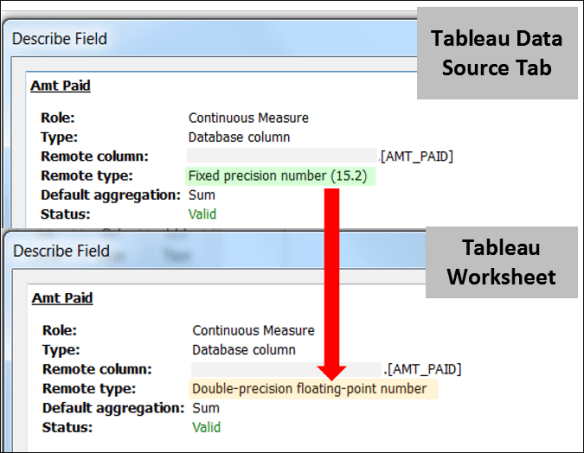
Data from SQL Server set as Numeric Precision 15 and Numeric Scale 2 resulted in a Tableau Extract conversion to Double Precision Float. The conversion led to inaccurate calculation results and a failure during project delivery.
The Story:
During final project delivery — Tableau visualization user acceptance testing — my client identified a handful missing records. The quantity was less than a dozen out of about 200K records — this is not exactly where you want to be. I needed details and fast as we had to deliver. We had to pull out the magnet and find that needle in the haystack…
–I had a hunch–
I asked my developer to send me the records that were identified and what filters and calculations applied to the records in question. And that last one, calculations was the key.
Calculations as Filters–
We were omitting records where a threshold had not been crossed. Tableau said we did not meet the threshold, but the same calculation in SQL Server said we had, as did the client’s original report.
Why?
Bits — Decimals are often not handled well by software — Precision settings matter.
Fixed Precision should inherit to the target –Tableau does not upon extract.
Extraction of SQL Server Fixed Precision 2 decimal field as of 10/20/2017 results in the very different Double Precision Float. The result is some decimal values will be converted to a less accurate value resulting in a potential fractional variances when performing calculations often in the 10-16th decimal place.
Actual Failure At Client:

(data selected to simply show decimal value error)
The left side shows the original 2 decimal fields AMT Paid and Clr Manually plus the simple addition calculation [Amt Paid] + [Clr Manually]
To see the Actual value in Tableau Push the decimal values out. The error –> a “1” at the 10th decimal place caused by Double Precision Float binary conversion limitation (likely 32 or 64 bit limit).
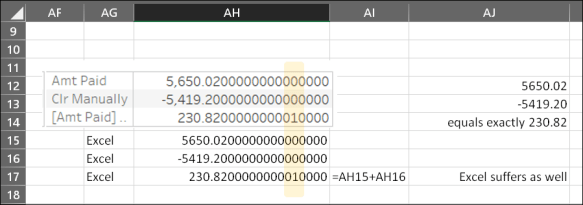
Notice the source fields do not add to the final field value?
If we set a control as either
<= 230.82 or = 230.82
Appears to meet the rule, but will not in a calculation
Reason: The actual value in Tableau is not the original 2 decimal value
The good news:
We were able to deliver the solution — Unfortunately by rounding in the calculation, which I cautioned as a functional, but inaccurate solution.
Testing and Solutions:
Testing with MS Access setting the field definition to currency fixes this when you extract. ***I have not fully vetted this with all possibilities***
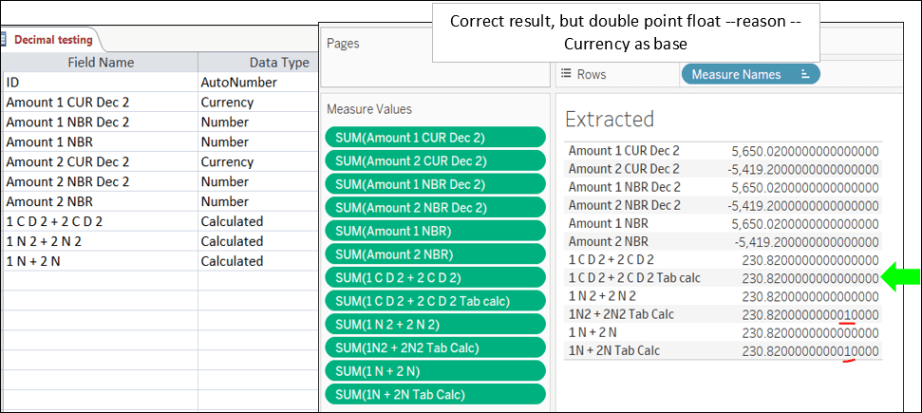
I will be updating this with SQL Server testing soon (as time permits)
Tableau Level Workarounds:
Round values
Multiply values by 100, wrap in INT() perform calc, then divide by 100
Datasource workarounds:
MS Access — Currency setting –Note only good for 2 decimal places — Tableau seems to work on extract
SQL server — Money setting (I will be verifying this soon)
What isn’t helped:
Numeric values that must be exactly a specific number of decimals i.e. non-monetary fields or fields with more decimals than monetary fields will accept.
Thanks for reading and be sure to upvote:
https://community.tableau.com/ideas/8036


 2 Layout the Floor
 Excel-i-rate