Tableau Hold ’em — Part 2 — The Flop Card 2

Featured

Remember the need we are trying to answer is: “I want to know if I should bet or not!” 


Easiest solution is a YES/NO output, but really?


Welcome to Part 2:

We will

Import your table to Tableau

Map coordinates


Wait! What?

Yes Tableau has a nifty X/Y method that allows you to map out your image and it is a must for this process.

Be sure you have saved your Excel Poker Table as a png ( you can use the Windows Snipping Tool)


YouTube walk-through

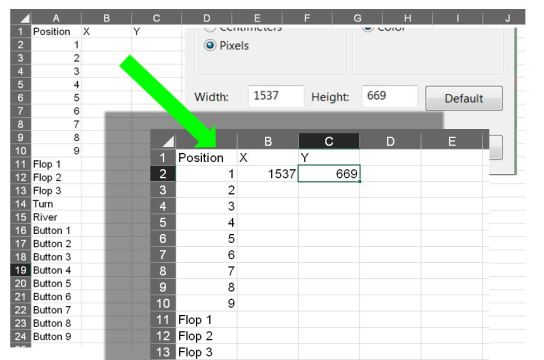
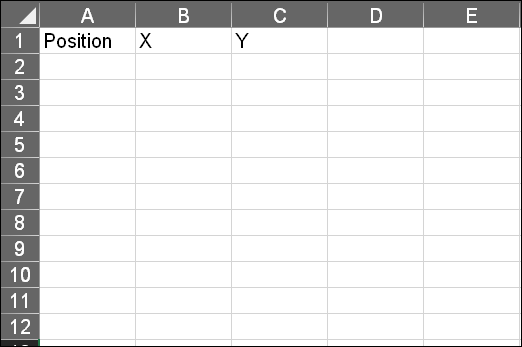
1 Create a data set in Excel that you can reference — 3 columns

  • Position
  • X
  • Y

Position x y table

2 Open the Poker Table in Paint and look at the properties

the pile4

3 Copy the Width and Height in pixels and enter into Excel

Mapping size


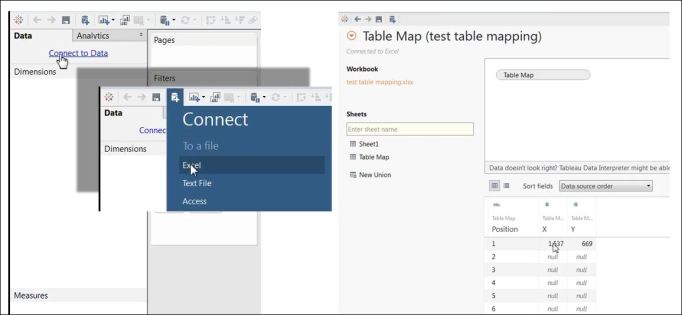
Save the Excel file so it can be used as a Tableau Data Source

4 Connect to that data source

connect

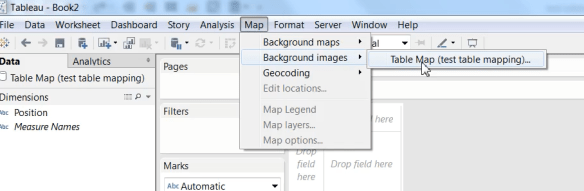
5 Open a new worksheet and go to the Map tab at the top of the screen

Select Background images

Mapping Menu.png

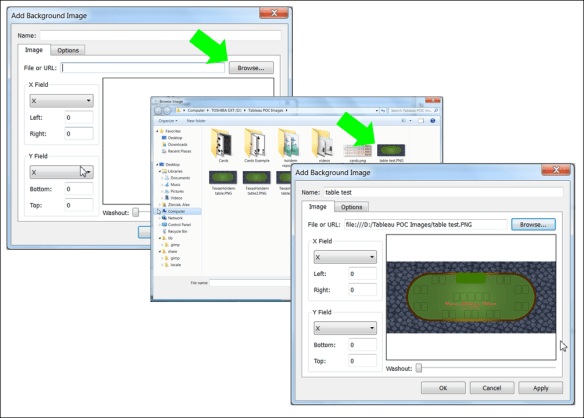
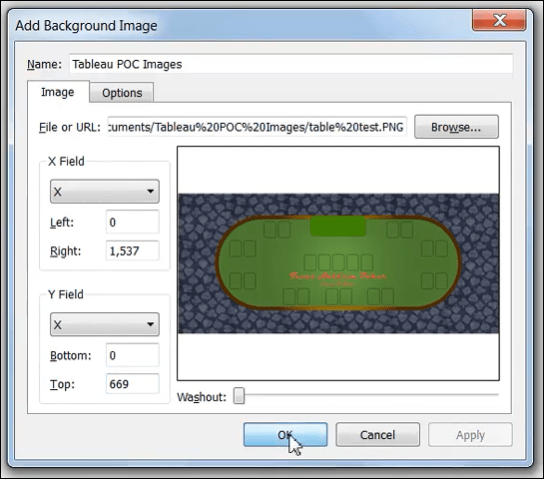
6 Add your image

Table image import steps.PNG

7 Place the X/Y pixel counts into the image as X = the right most position and Y = the top most position

mapped x y

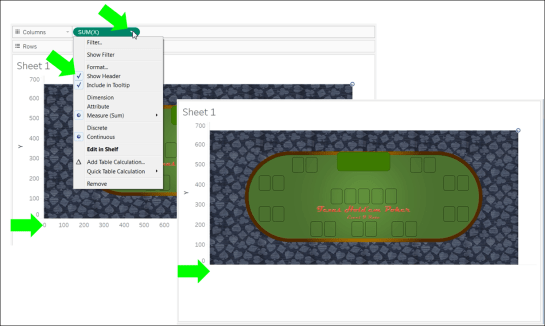
8 Create a cross tab with X as column and Y as rows

Things to consider:

In Map >> Background Images be sure you have “Always show Entire Image” selected

Be sure you select “X” and “Y”  when you enter your data

You will now see your Texas Hold ’em table

imported table.PNG

You can hide the headers to make a clean worksheet

Hide Headers.PNG

Up next –> Tableau Hold ’em Part 3


Previous steps:

https://excelirate.wordpress.com/2017/09/05/tableau-holdem-series/

https://excelirate.wordpress.com/2017/09/18/tableau-hold-em-part-1-the-flop-card-1/


Tableau Hold ’em — Part 1 — The Flop Card 1

Featured

I want to know if I should bet or not!


Ok, so anyone can look up odds and probabilities…

An Excel spreadsheet can quickly tell you if your hand, position at the table, amount in the pot, etc. is good and the likely value

Great!

If you are like me, and like spreadsheets do not continue–you are done, you do not need the rest


The Rest…

Ok, you stayed?

First things first–we are talking Texas Hold ’em Poker. Some of you may understandably disapprove of gambling. I am using it as an example of understanding probability and/or statistics to drive informed, and hopefully, better decision making!

Secondly — People like to understand data in context. Actually all data must be used in context to have meaning. If I am playing poker, I want to see the hand value and see it in the position where I am sitting.

While I can do this in the abstract table, why not actually make a table?


Step 1: Make a table

(videos below)

TexasHoldem table3

The beauty is you do not need anything fancy–if you have Excel, use it. I do so in this video tutorial. Are there better ways? Sure.

The table will be where I will present the data in the actual context that is immediately understandable. The Tableau Viz will also aim make the data more actionable.

Steps involved– (Note I used Excel for the steps below as there is no need for fancy photo editing software)

1 Snag an Image of “Casino Carpet”

— google it and be warned, this is educational, if building for a client you may want to get the rights

https://www.google.com/search?safe=off&tbm=isch&q=casino+carpet&chips=q:casino+carpet,g_1:vintage&sa=X&ved=0ahUKEwj5tYqknqfWAhWo3YMKHRIzB_EQ4lYIKSgA&biw=1920&bih=974&dpr=12 Layout the Floor

  • Copy the image into Excel or your preferred software
  • Repeat the image to tile out the floor

3 Create a Table

  • Insert >> Shapes: select the Rounded Corner Rectangle
  • Adjust the curved edges
  • Select Gradient for the color fill and the outline

4 Add the Dealer and Card Locations

  • Insert >> Shapes: select the Rounded Corner Rectangle
  • Set Fill to No Fill
  • Set Line to Black
  • Copy and paste these to create location for the cards

5 Place the Table on Your Floor

  • Once your table is made place it on the floor
  • Copy the entire image
    • Either with a snipping tool
    • Group in Excel then copy and paste into an editor
  • Save image to be used with Tableau

I tend to save in multiple formats — for the rest of the tutorial I will be using .png

You have made your table, now what?

Next week click over to setting up tableau in Tableau Hold ’em Part 2

Please leave comment in my YouTube and WordPress blog. I do not claim to be following best practices here so please be positive. Share if you see value. Ignore if you don’t.

VBA To publish a Batch File from MS Excel

In a previous post I described how to set up a batch file to create a list of files in a directory, specifically MS Excel files.

Sample Excel file with VBA in it.

Question:

Have you ever wanted to bring the data from a set of standardized files into one file using automation?

If so, this blog represents step 2—generating the list remotely. Refer to my previous post to learn how the batch file works.

Tools: MS Excel, MS Windows

Fast Answer–MS Excel VBA Code:

Sub Build_Bat()
'
'''''''''''''''''''''''''''''''''''''''''''''''''''''''''''''''''''''''''''''''''''''''''''''''''''''''''''''''''''''''''
'
' Build_Bat generates a batch file
'
'''''''''''''''''''''''''''''''''''''''''''''''''''''''''''''''''''''''''''''''''''''''''''''''''''''''''''''''''''''''''''

Dim FileNum As Integer
Dim Filepath As String
Dim Folder As String

Filepath = <<Enter your file path here with a closing \>> & "filelist.bat"

'’’’’’’’’’’’’’’’’’’’’’’’’’’’’’’’’’’’’’’’’’’’’’’’’’’’’’’’’’’’’’’’’’’’’’’’’’’’’’’’’’’’’’’’’’’’’’’’’’’’’’’’’’’’’’’’’’’’’’’’’’’’’’’’’’’’’’
'
' Example: Filepath = "C:\Users\Alexander zbiciak\Batch Example\" & "filelist.bat"
'
'’’’’’’’’’’’’’’’’’’’’’’’’’’’’’’’’’’’’’’’’’’’’’’’’’’’’’’’’’’’’’’’’’’’’’’’’’’’’’’’’’’’’’’’’’’’’’’’’’’’’’’’’’’’’’’’’’’’’’’’’’’’’’’’’’’’’’’

'create spot for batch file

FileNum = FreeFile()

'open file

Open Filepath For Output As #FileNum

'write batch file

Print #FileNum, "pushd " & Folder
Print #FileNum, "filetorun -options"
Print #FileNum, "dir /b *.xls? > fileslist.txt"

Close #FileNum

End Sub

Before Macro is run:

After Macro is run:

How To:

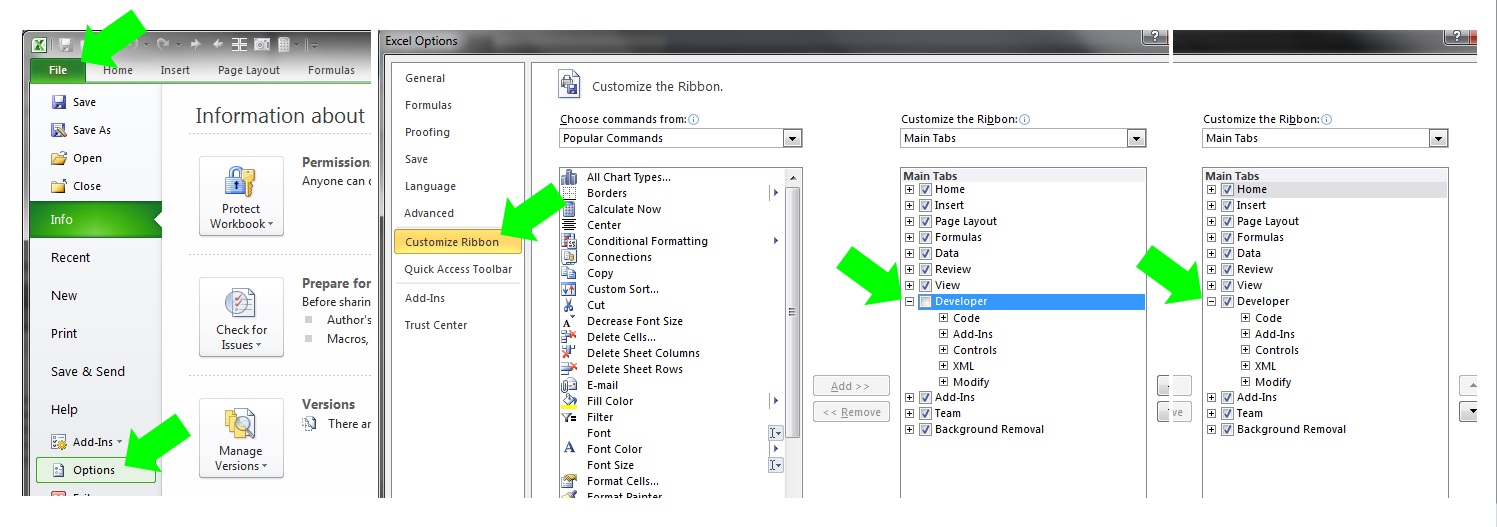
First open up Excel and be sure you have the developer tab enabled in your ribbon:

File >> Options >> Customize Ribbon >> Developer

ExcelBatch3

Select the Developer Tab and then the Visual Basic Icon to open your editor:

ExcelBatch4

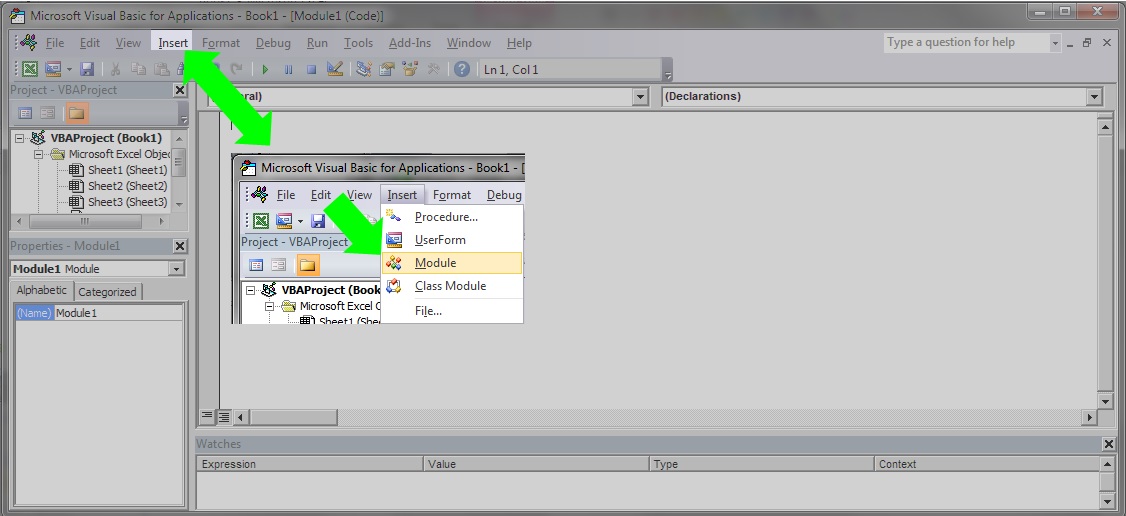
Inside the editor you will need to add a module if there are none or open one you want to add this code to:

ExcelBatch5

With your module open copy the code below and paste it in (be sure to change your file path):

Sub Build_Bat()
'
'''''''''''''''''''''''''''''''''''''''''''''''''''''''''''''''''''''''''''''''''''''''''''''''''''''''''''''''''''''''''
'
' Build_Bat generates a batch file
'
'''''''''''''''''''''''''''''''''''''''''''''''''''''''''''''''''''''''''''''''''''''''''''''''''''''''''''''''''''''''''''

Dim FileNum As Integer
Dim Filepath As String
Dim Folder As String

Filepath = <<Enter your file path here with a closing \>> & "filelist.bat"

'’’’’’’’’’’’’’’’’’’’’’’’’’’’’’’’’’’’’’’’’’’’’’’’’’’’’’’’’’’’’’’’’’’’’’’’’’’’’’’’’’’’’’’’’’’’’’’’’’’’’’’’’’’’’’’’’’’’’’’’’’’’’’’’’’’’’’
'
' Example: Filepath = "C:\Users\Alexander zbiciak\Batch Example\" & "filelist.bat"
'
'’’’’’’’’’’’’’’’’’’’’’’’’’’’’’’’’’’’’’’’’’’’’’’’’’’’’’’’’’’’’’’’’’’’’’’’’’’’’’’’’’’’’’’’’’’’’’’’’’’’’’’’’’’’’’’’’’’’’’’’’’’’’’’’’’’’’’’

'create spot for batch file

FileNum = FreeFile()

'open file

Open Filepath For Output As #FileNum

'write batch file

Print #FileNum, "pushd " & Folder
Print #FileNum, "filetorun -options"
Print #FileNum, "dir /b *.xls? > fileslist.txt"

Close #FileNum

End Sub

ExcelBatch6

Test your macro by opening the file path in the Windows file explorer. Leave this open so you can watch the VBA output:

ExcelBatch7

With the file explorer window to the side, place your cursor inside the VBA code and then click the play button:

ExcelBatch8

Congratulations—You have now published a batch file from MS Excel.

Batch for Obtaining MS Excel File List

Ever open up a folder in Windows and wonder how can I get a copy of all the file names in the folder?
Often you need a list, sometimes, you need the list to automate a process. The post will cover using Batch files for obtaining a list of Excel files.

Tools:  Windows operating system and Notepad
Application:  Windows directories and network drives*

Fast answer:

In notepad save this code as a .bat file:

pushd C:YourFilePath\Batch Example
filetorun -options
dir /b *.xls? > fileslist.txt

How To:

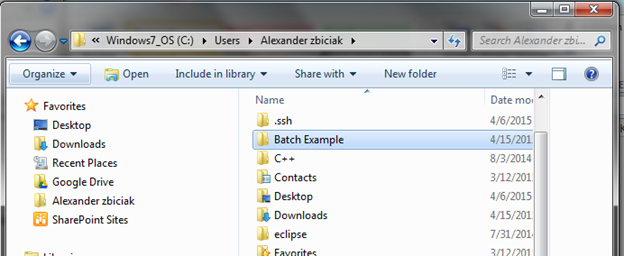
First we will create a folder for testing. I named my folder Batch Example. I placed the batch file in my directory as follows:

Batch1

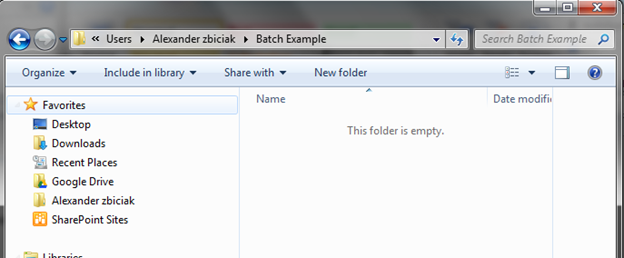
Open the folder and leave the Windows folder explorer open while you perform these next steps.

Batch2

Open Notepad:

We will use notepad to author your batch file—also referred to as a .bat file. So open your Notepad and place the following code in. (Be sure to rewrite your file path)

Code:

pushd C:<<YourFilePath>>\Batch Example
filetorun -options
dir /b *.xls? > fileslist.txt

Your code should look like the picture below except for the file path:

Batch3

Save your file as filelist.bat in the Batch Example folder:

Save As

Batch4

File name: filelist.bat and click save.

Batch5

Note: it is ok that “Save as type” still says Text Documents (*.txt)

Switch to the file explorer and you will see the batch file:

Batch6

To use the batch function you must now double click it to run it or use the command line, etc.

Go ahead and double click it:

Fileslist.txt is created

Batch7

The file will contain all of the .xls type files in the folder.

To verify open it up. You will see it is empty:

Batch8

Now add a couple test MS Excel files to the folder (must contain the file extension “.xls” or “.xls” variants: “.xlsm’, “.xlsx”, “xlsb”)

Note—you may need to turn on file extension setting to see them in the file explorer—they are there even if the extension visibility is turned off)

Here I have created several test books in different MS Excel formats:

Batch9

Double click the .bat file to run it and to make a new fileslist.txt file. After the batch file runs, open the fileslist.txt file and you will have a list of all the MS Excel ( .xls type) files:

Batch10

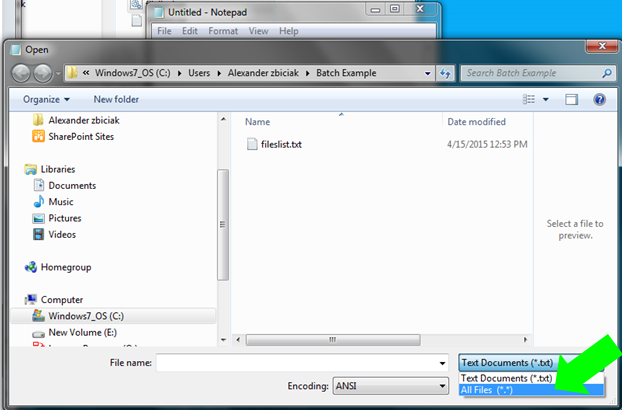
If you need to edit the batch file, you will have to open notepad first, then open the batch file from notepad.

Open Notepad
Select the correct path
Switch the Text Documents (*.txt) to All Files(*.*)

Batch11

What the Batch file is doing:

A Batch file is a list of command line commands, each line represents what you would be doing in the command prompt.

Line 1: “pushd” command

pushd C:\Users\Alexander zbiciak\Batch Example
filetorun -options
dir /b *.xls? > fileslist.txt

The pushd changes the current directory to the specified directory and stores the previous directory to popd.

In the command line the first line I typed the same string:

pushd C:\Users\Alexander zbiciak\Batch Example

The Command line shows the directory to be changed to:

C:\Users\Alexander zbiciak\Batch Example

Line 2: filetorun – options

pushd C:\Users\Alexander zbiciak\Batch Example
filetorun -options
dir /b *.xls? > fileslist.txt

filetorun –options is optional, the .bat will run without it.

Line 3: dir /b *.xls? >

pushd C:\Users\Alexander zbiciak\Batch Example
filetorun -options
dir /b *.xls? > fileslist.txt

dir /b *xls? > will search the directory for files containing the string .xls and write them to the fileslist.txt file.

The * will allow anything to be in front of the .xls
The ? will only allow up to one character after the .xls
The control helps avoid pulling in non-Excel files. In the picture you can see some unfortunately named text files, but they are not brought into the fileslist.txt file:

Batch13

The batch file ignored “xls.txt and xlsb.xls.txt” You can see the file output in the preview window to the right.

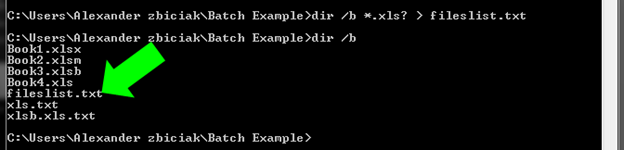
See it in action at the command prompt:

Start over with no batch file or fileslist.txt file in the directory—if we were to run the commands we would see the following:

pushd C:\Users\Alexander zbiciak\Batch Example

Batch14

dir /b

Batch15

dir /b *.xls?

Batch16

dir /b *.xls? Limited the output to only .xls type files

dir /b *.xls? > fileslist.txt
dir /b

Batch17

Adding in the >fileslist.txt will assign the list to a textfile names fielslist.txt

For more information see also:

https://technet.microsoft.com/en-us/library/bb490890.aspx

Vlookup: Learn it, Love it and leave it Part 3 –False Versus True

Data is only as good as the preparation!

  • What happens if we do not force Excel to return the exact data we want?
  • What about looking up an item when there may be more than once instance of it?
  • Troubleshooting data—Can you do it when you are accustomed to using the formula building dialogue box?

To help limit errors we can use three helpful keys to avoid reporting incorrect data:

False versus True
Unique Keys
In Cell / Formula Bar editing versus CTRL+A Dialogue editor

We will discuss False versus True in this post. Download and open this Excel file and follow along.


False versus True:

If you need data integrity, always use False in the [Range_Lookup] section of the Vlookup.

Excel’s formula is broken down as such:

vlookup(Lookup_value, table_array,col_index_num, [range_lookup])

[range_lookup] is bracketed meaning it is optional, yet it determines if the result is exact or a close

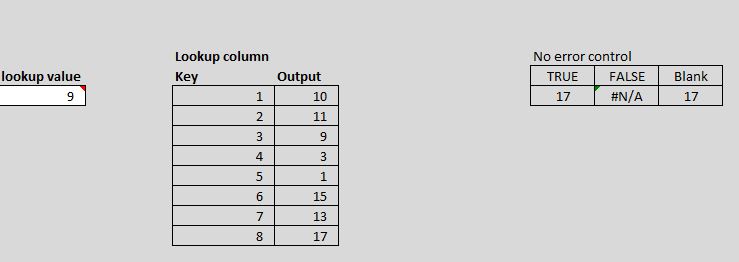
True: Returns an approximate match = dangerous when reporting data

Blank: Appears to default to TRUE

False: Returns data only if the lookup value exists, which runs the risk of a #N/A as a result, and ONLY finds the first instance of the lookup value

Vlookup True False Blank

9 is the lookup value. Which output would you report to your boss?

 Why would people use True?

A possible reason includes avoidance of the #N/A result which can disrupt sums, counts and other formulas.

Another is when the source is sorted–you can find something close.

Close / Approximate / Incorrect output could  drastically alter sums, counts, etc.—and the end user doesn’t even know. Which is worse? #NA or incorrect data?

Takeaway: Avoid TRUE unless you have a specific case to use it.

Ideal  formula would look like this:

VLOOKUP(A3,C3:D10,2,FALSE)

To avoid the #N/A add in error control using Iferror or other If statement constructs:

=Iferror(value, value_if_error)

            value_if_error setting:

Null version:   =Iferror(vlookup(A3,C3:D10,2,FALSE),””)

Zero Version:  =Iferror(vlookup(A3,C3:D10,2,FALSE),0)

Adding in Error control cleans the output

Adding in error control cleans the output. I used the “” or Null method to generate a blank. Using Zero may imply a different meaning.

Note:  the method chosen should account for what formulas if any may rely on the output—a null is not the same as a zero when determining averages, counts, etc. Refer to the example Excel file to see the consequences of True/Blank versus False and the Zero versus Null on reporting. Always run sample checks for proper averages, counts etc. Know the question you wish to answer to determine Zero or Null in error control.

IF” constructs (Previous functions work in current versions of Excel):

Pre 2007/10 and forward:

=IF(ISERROR (value))

https://support.office.com/en-AU/article/iserror-function-6a5f3e99-40bc-43ce-a7c8-e79b7b6af5d5

2007/2010 and forward:

=IFERROR(value,value_if_error)

https://support.office.com/en-AU/article/iferror-function-f59bacdc-78bd-4924-91df-a869d0b08cd5

2013:

=IFNA(value, value_if_na)

https://support.office.com/en-au/article/IFNA-function-6626c961-a569-42fc-a49d-79b4951fd461


You are now on your way to sourcing the intended data and not accidentally retrieving unintended data. Look for my next posts on Unique Keys and learning to edit formulas directly in cell or via the formula bar instead of the formula building dialogue box.

Vlookup: Learn it, Love it and Leave it… Part 2 Enhancements

In Part 2, I showed you how to add the dynamic aspects to a Vlookup formula, but we left a lot of room for error. In particular the user may enter data that cannot be found in the data. I showed how entering an “a” for item # failed, likewise the user may wish to enter January, not knowing or realizing Jan is the column header. Part 2 Enhancements shows you how to add validation rules to speed reporting by helping the user enter only what is needed.


Tools to be used: Data Validation.


First we want to be sure that the user only selects valid data.

To do this we will look at our two selections we made Item # and Month in cells C16 and D16. Select cell C16 and then go to:

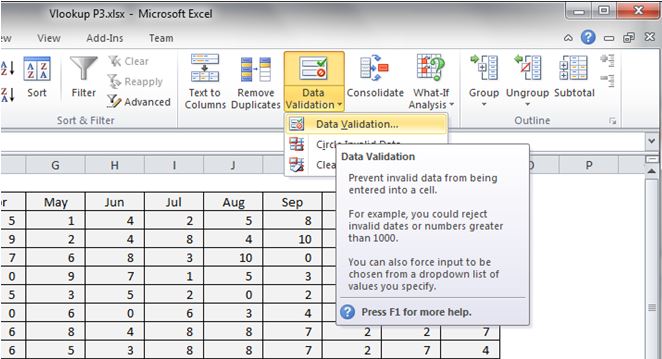
Ribbon Data tab >> Data Validation >> Validation Criteria >> select List

Click on Data Validation to open the contextual/dialogue box for your inputs:

DataValidation

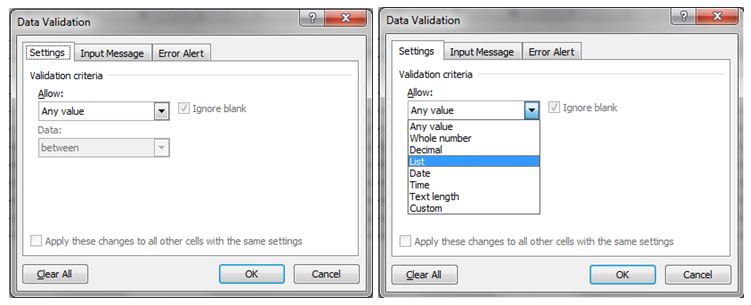
 In the dialogue box navigate to the Allow: box.

Use selection box by activating the drop down and then select List.

DataValidationList

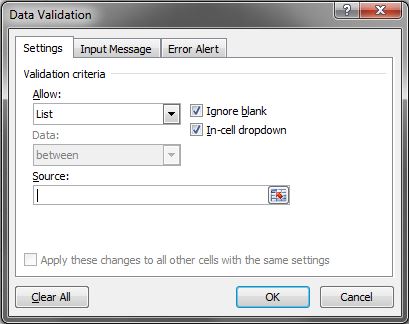
In Source:  enter the limited range (array) that has all of your items.

Data Validation List Source

For this example we will use the data table itself. In more advanced files we would use a control table to limit our possible items from a master list.

We will enter: $A$3:$A$12.


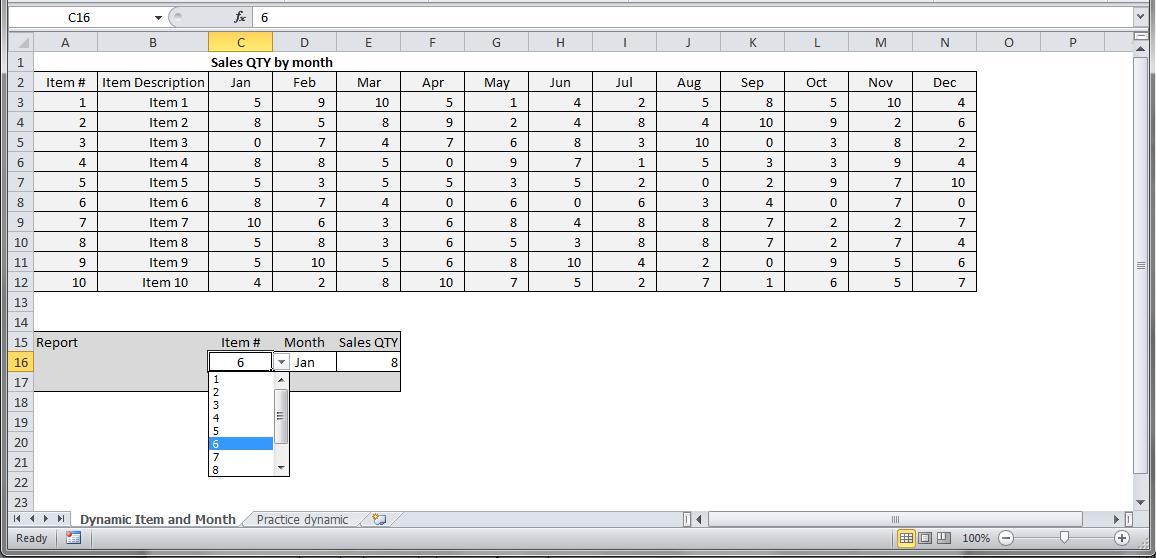
Once you hit enter, the cell C16 will now show a drop down arrow allowing you to select only what is in the list you referenced.

Data Validated Cell


You can do the same for the Months by selecting cell D16 and applying the list limitation with the source set to $C$2:$N$2. You can either manually type this or select the range with your mouse. Use the Practice tab of the linked file to build your own.


Congratulations, you have now limited the user entries and also helped ensure they are selecting the right items. You are on your way to building reports.

Vlookup: Learn it, Love it and Leave it… Part 2

Vlookup Part 2

In Part 1, we learned how to find a data point by declaring a table array or range, using a lookup column and setting which data column we needed to pull data from. That was easy enough, but most data tables are not so easy to use and as an analyst we often require lots of data quickly. To enable quick data retrieval we should employ a dynamic and hopefully scalable method. We must add dynamic abilities to our formulas to speed data capturing for reporting.

Tools:

Tools to be discussed are referencing cells for data and how to isolate the needed columns.

In part 1, we coded our formula to directly look for item 1 using the formula:

=VLOOKUP(1,$A$2:$N$12,3,False)

While this worked great as an Ad-Hoc data lookup, it fails to very be useful. References are hard coded and if using many Vlookups, there will be a lot of downtime to change every formula to generate new results.

Usually analysts need to answer multiple questions and create reports showing lots of data points. Here we will adopt a reference method to allow the formula to become dynamic.

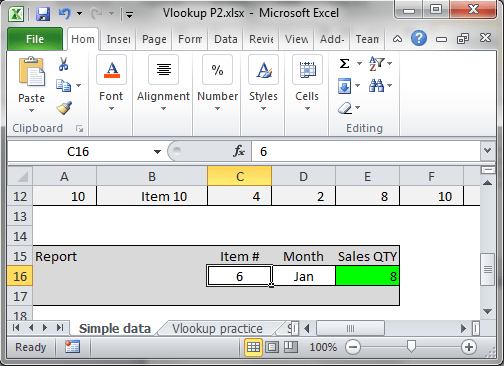
Open and download the Vlookup P2 file to follow along. You will see I added the Report section:

VlookupP2P1

The report section will allow you to change what you are looking up. I like to grey out non-input cells and leave input cells white in my user entry areas. In this case the user can change the Item # and Month. First we will discuss the Item Number reference and how this works.

I selected the item# input cell and you can see Excel references it as C16 in the top left of the screen:


You can use this as your reference id in the Vlookup formula:
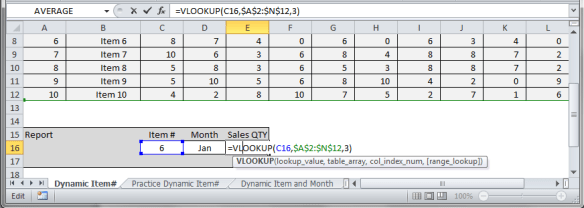
Notice the Lookup_value is C16 and Excel color codes the cell reference in the formula and the corresponding cell is outlined in the same color.

The Vlookup formula is now dynamic as to what Item # you can look up. You can enter anything in cell C16, but the formula will only return data for valid references. Try entering 11 or a letter.

VLookupp2p6

Your formula will return the error code #N/A.

Now that we have made the Item selectable, let’s move onto the column. Currently we are using a hard reference for the column (col_index_num).

Our current formula is:

=VLOOKUP(C16,$A$2:$N$12,3,False)

Remember: vlookup(Lookup_value, table_array,  col_index_num, [range_lookup])

Although the Col_index_num = 3, we want to make the col_index_num equal to the column position that corresponds to the Month input in Cell D16. Unlike the Item # reference, we cannot just reference Cell D16 for the col_index_num.


A brief discussion of how the C16 reference works:

Using the file linked above:

In any cell type =C16 and you will see the contents of C16 displayed.

In another cell enter =D16 and you will see the contents of D16 displayed. D16 happens to be “Jan” which is the column we want.

Notice, however, that the formula requires a number for the col_index_num, not the Month name. You could enter a number in the Month box, but this may not be the best method. Month #’s will not be the actual column position. Most people would think 1 = Jan, in this case 3 = Jan.

You could write the formula like so:

=VLOOKUP(C16,$A$2:$N$12,D16+2,False)

By using the offset adding 2 you can now select 1 for January and 2 for February, but this is not a good practice as the table may change and the +2 offset is not dynamic—meaning it will not adjust to any changes in the table.


How then will we make the Month selection dynamic? Use the Match function.

=Match(Lookup_value, Lookup_array, [Match_type])

I added a work area to the spreadsheet for trying out the match function:
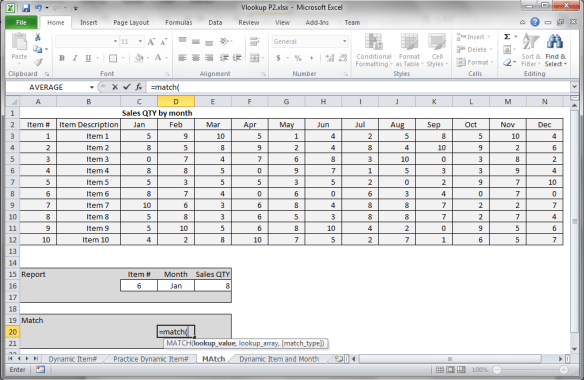

When using the Match function the function looks through an array and finds if there is a match for you input and then returns the index position, which means the numerical position from start in which the data point was found.

Here we want to find the match for Jan in row 2.  Since we are using a text string we have to tell Excel it is text by encapsulating Jan in quotes “Jan”.

Note: Capitalization does not matter in Excel for matching.

&

Single quotes  in front of data as well as preceding and trailing blank spaces will break a lookup/match so look for these if your data is not coming to you.

Lookup_value will be “jan”.

Lookup_array is 2:2 because the months are found in row 2.

Note: 2:2 is the range of cells that might contain the item we are looking up. This must be a single line or column—unlike a table, you can only reference a single row or single column. To declare the row as a range, you tell Excel it starts in row 2 and ends in row 2 and join the start and stop with a colon, thus 2:2. You can use the anchored version $2:$2.

[Match_type]  is optional according to the Excel hint [ ]’s means you can omit for the function to work. To generate the correct output the match_type is very important.

0 = exact match, which is what analysts usually need.
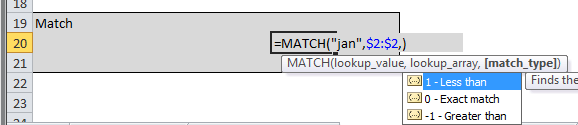
=MATCH(“jan”,2:2,0)

Again a good practice is to anchor your range/array.
.

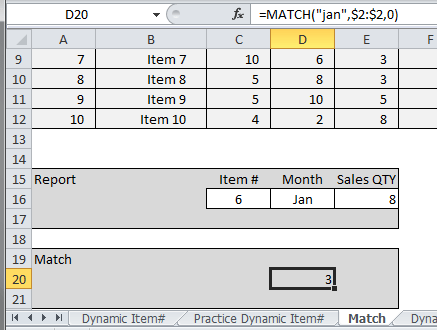
=MATCH(“jan”,$2:$2,0)

The output of the formula is 3, which tells you the column index position is 3.


We can take the entire match formula and embed it into the vlookup in place of the 3. The new formula will look like this:

=VLOOKUP(C16,$A$2:$N$12,MATCH(D16,$2:$2,0),False)
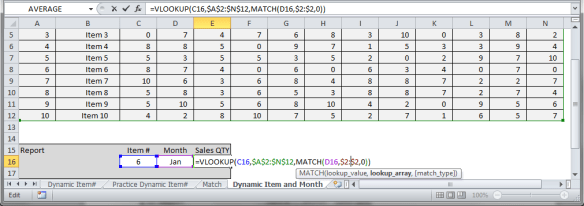
 

You now have a fully dynamic lookup formula. Play with the linked file and build your own formulas.

Vlookup: Learn it, Love it and Leave it–Part 1

Vlookup Part 1

Vlookup and the corresponding Hlookup are a new to Excel user’s best friend and over time will become one of your least desired solutions.

Vlookups are used to quickly pull data out of large data tables and are often the go to formula for almost anything an analyst does. Understanding Vlookup is paramount as most Excel users will employ this method extensively and, therefore, you will need to understand what is doing and how to navigate it as well as solve for its limitations.
How the Vlookup works:

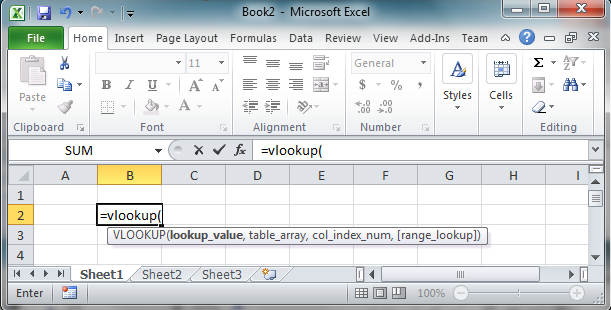
When you type in =Vlookup(   in Excel you will be greeted with the formula format:

=vlookup(Lookup_value, table_array,  col_index_num, [range_lookup])

 Vlookup

Of course what this means is obvious to a new user! Great so now what?


Data:

You probably need to find a particular data point.

Likely your team or boss asked you to find how much of item X was sold on date Y in region Z or some other business scenario.  So here you have a lookup item and some limitations. Before we dig deep let’s start with the item lookup.

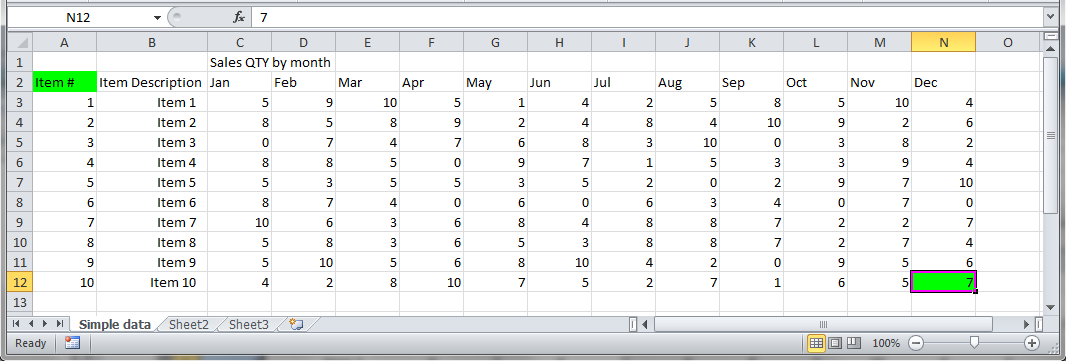
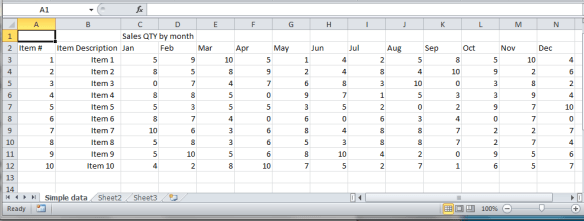
Assume your company has 10 items and the all sales data is kept in a simple table like below:

(Click here or the image for the sample file to play with housed on Google Drive)

Simple Table

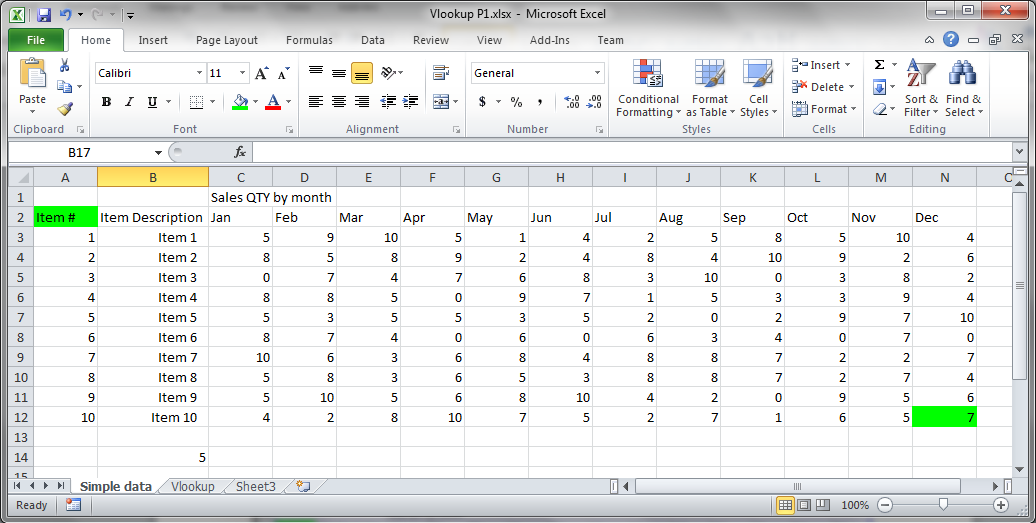
In the table above you have sales quantity data for item#’s one through ten and by month.

To answer your boss’s request your Vlookup formula will need to be limited by which item you need and then which month you need.(For database users the Vlookup is a much like an SQL Select Where statement)

The formula:

vlookup(Lookup_value, table_array,  col_index_num, [range_lookup])

Lookup_value: The selected item you need to find data for

Col_index_num: The column where the date you need data is located

Table_array:  Excel description for the table–its spreadsheet location. We will tackle this in a minute.

[range_lookup]: Set this to False–False returns exact data

Suppose we want Item 1 sales quantity in January. Our Lookup value can be either the Item # or Item Description. As long as we have one of the two we can lookup that item.

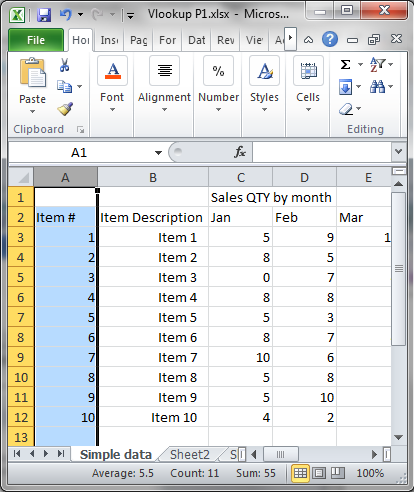
Let’s start with the Item # which is in column A. I have the reference column highlighted in the image below.

Selection column

Your data is to the right of column A. Columns are sequential with the first column = 1. We want January data. Jan is column C, which is the 3rd column of the table so the column # = 3.

(Note it is important that you are counting column position from the lookup_value column as a table may not start at column A).


We now know:

Lookup_value is 1

Col_index_num is 3

To complete the formula we need the Table_array.

A table array is the start and stop cells designating the location for the data table. In the table we are using the table starts at cell column A and cell row 2. Excel’s naming convention for cell location is column letter then row # thus A2.

In the below picture I highlighted the tables beginning cell and end cell in green. If you select a cell you will see the cell name populate in the area above the spreadsheet to the left. In this case I will select cell N12. You will also see the column and row indicators highlighted on the edges of the spreadsheet as well as N12 in the left top of the screen.

Table array

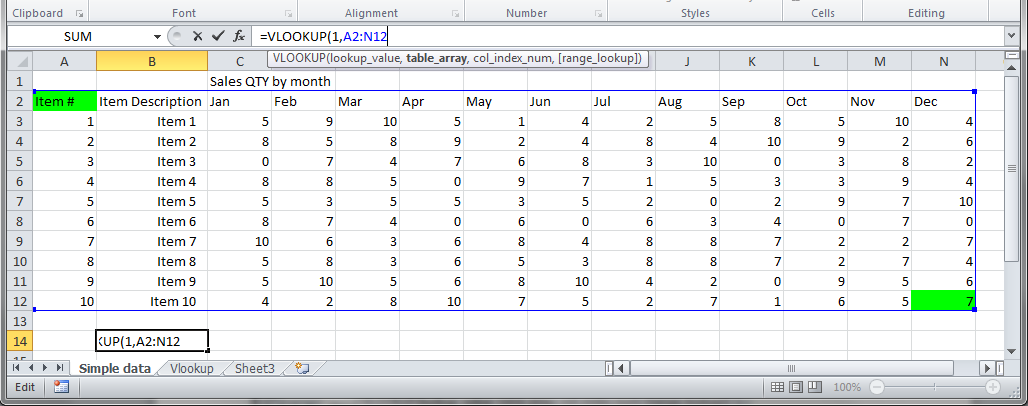
To define a range or array we need both the start and end cell names joined together with a colon. Thus this table range is

A2:N12

Notice Excel draws a blue outline around your referenced range:

Blue Box

Note: This range or array reference is referred to as an unanchored range. Some techniques in Excel will cause your unanchored reference to change when using drag, copy/paste, etc. Be sure to check your references.

You may opt for the anchored version which forces the reference to remain unchanged by adding in $ before the column and row indicators like so:

$A$2:$N$12

You can anchor by typing the dollar signs or by pressing F4. You can anchor the column, the row or both, Highlight the A2:N12 and press F4 1 time to anchor both (details for another post as to how, when and why).

 Anchor

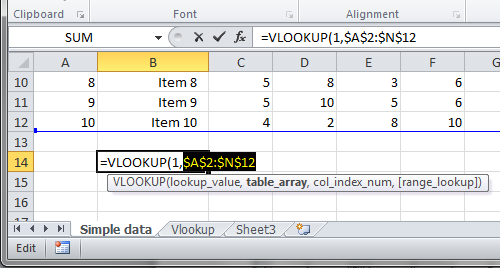
Your formula will now look like this:

=VLOOKUP(1,$A$2:$N$12,3,False)

The output of this formula should be 5. Hit enter and you will see the answer:

Answer

Congratulations you have now used the Vlookup. Try one of my next guides to see what you can do with Vlookups!

Please Look at my additional posts as you delve into VLookups:

Part 2

Part 2 Enhancements