Unknown's avatar

About alexzbiciak

Data Analytics Consultant working across domains including manufacturing, supply chain, consumer packaged goods, etc. designing and implementing solutions. View my profile on Linkedin: www.linkedin.com/in/alexanderzbiciak/

Tableau Hold ’em — Part 2 — The Flop Card 2

Featured

Remember the need we are trying to answer is: “I want to know if I should bet or not!” 


Easiest solution is a YES/NO output, but really?


Welcome to Part 2:

We will

Import your table to Tableau

Map coordinates


Wait! What?

Yes Tableau has a nifty X/Y method that allows you to map out your image and it is a must for this process.

Be sure you have saved your Excel Poker Table as a png ( you can use the Windows Snipping Tool)


YouTube walk-through

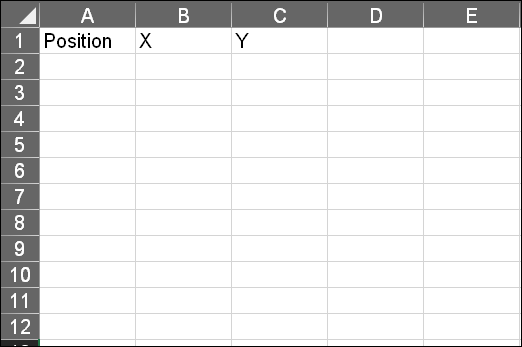
1 Create a data set in Excel that you can reference — 3 columns

  • Position
  • X
  • Y

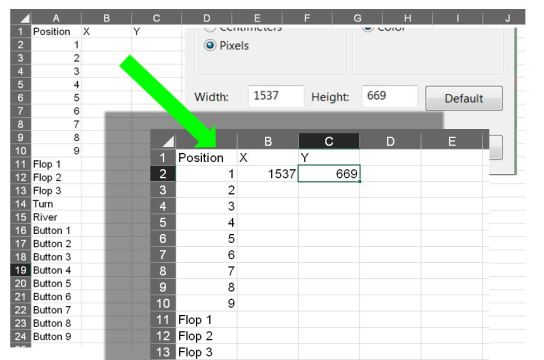
Position x y table

2 Open the Poker Table in Paint and look at the properties

the pile4

3 Copy the Width and Height in pixels and enter into Excel

Mapping size


Save the Excel file so it can be used as a Tableau Data Source

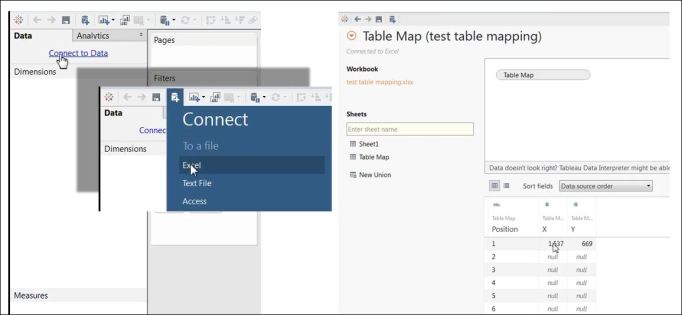
4 Connect to that data source

connect

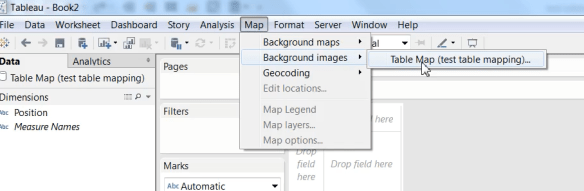
5 Open a new worksheet and go to the Map tab at the top of the screen

Select Background images

Mapping Menu.png

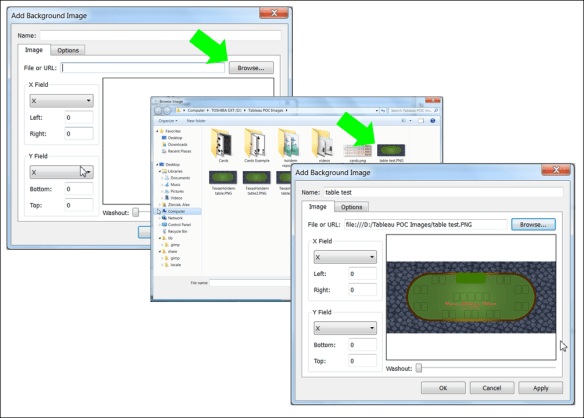
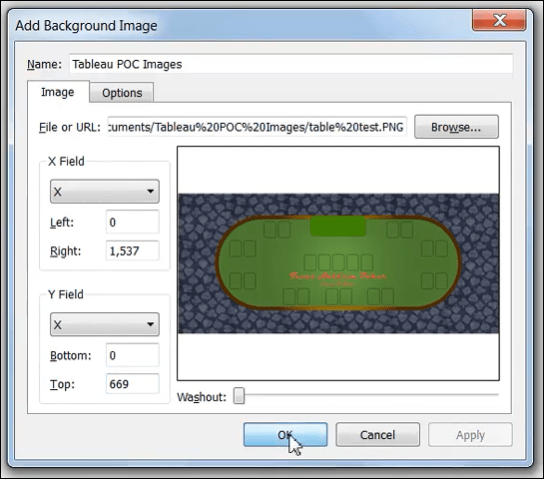
6 Add your image

Table image import steps.PNG

7 Place the X/Y pixel counts into the image as X = the right most position and Y = the top most position

mapped x y

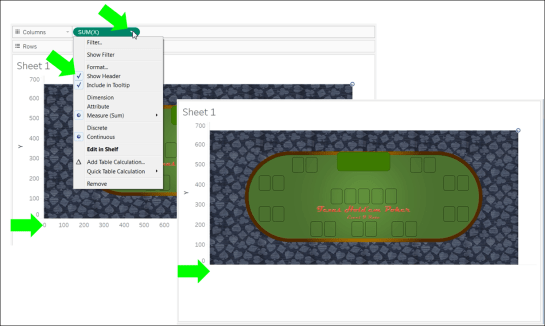
8 Create a cross tab with X as column and Y as rows

Things to consider:

In Map >> Background Images be sure you have “Always show Entire Image” selected

Be sure you select “X” and “Y”  when you enter your data

You will now see your Texas Hold ’em table

imported table.PNG

You can hide the headers to make a clean worksheet

Hide Headers.PNG

Up next –> Tableau Hold ’em Part 3


Previous steps:

https://excelirate.wordpress.com/2017/09/05/tableau-holdem-series/

https://excelirate.wordpress.com/2017/09/18/tableau-hold-em-part-1-the-flop-card-1/


Tableau Hold ’em — Part 1 — The Flop Card 1

Featured

I want to know if I should bet or not!


Ok, so anyone can look up odds and probabilities…

An Excel spreadsheet can quickly tell you if your hand, position at the table, amount in the pot, etc. is good and the likely value

Great!

If you are like me, and like spreadsheets do not continue–you are done, you do not need the rest


The Rest…

Ok, you stayed?

First things first–we are talking Texas Hold ’em Poker. Some of you may understandably disapprove of gambling. I am using it as an example of understanding probability and/or statistics to drive informed, and hopefully, better decision making!

Secondly — People like to understand data in context. Actually all data must be used in context to have meaning. If I am playing poker, I want to see the hand value and see it in the position where I am sitting.

While I can do this in the abstract table, why not actually make a table?


Step 1: Make a table

(videos below)

TexasHoldem table3

The beauty is you do not need anything fancy–if you have Excel, use it. I do so in this video tutorial. Are there better ways? Sure.

The table will be where I will present the data in the actual context that is immediately understandable. The Tableau Viz will also aim make the data more actionable.

Steps involved– (Note I used Excel for the steps below as there is no need for fancy photo editing software)

1 Snag an Image of “Casino Carpet”

— google it and be warned, this is educational, if building for a client you may want to get the rights

https://www.google.com/search?safe=off&tbm=isch&q=casino+carpet&chips=q:casino+carpet,g_1:vintage&sa=X&ved=0ahUKEwj5tYqknqfWAhWo3YMKHRIzB_EQ4lYIKSgA&biw=1920&bih=974&dpr=12 Layout the Floor

  • Copy the image into Excel or your preferred software
  • Repeat the image to tile out the floor

3 Create a Table

  • Insert >> Shapes: select the Rounded Corner Rectangle
  • Adjust the curved edges
  • Select Gradient for the color fill and the outline

4 Add the Dealer and Card Locations

  • Insert >> Shapes: select the Rounded Corner Rectangle
  • Set Fill to No Fill
  • Set Line to Black
  • Copy and paste these to create location for the cards

5 Place the Table on Your Floor

  • Once your table is made place it on the floor
  • Copy the entire image
    • Either with a snipping tool
    • Group in Excel then copy and paste into an editor
  • Save image to be used with Tableau

I tend to save in multiple formats — for the rest of the tutorial I will be using .png

You have made your table, now what?

Next week click over to setting up tableau in Tableau Hold ’em Part 2

Please leave comment in my YouTube and WordPress blog. I do not claim to be following best practices here so please be positive. Share if you see value. Ignore if you don’t.

Tableau HOLD ’em

TexasHoldem table3

Any one seen a Tableau viz?

Were you blown away by the fancy colors and lines, shapes,etc…?

–No? Me neither


Why oh why do corporate entities love it so?

Over the next few weeks I will be publishing what visualizing data means to me. I work with data daily for my job. I love database tables and spreadsheets because I can get to the detail and I know what I am looking at.

Executives, the general public–yes not likely

They need to be able to visualize the details in actionable reports

Jump to Part 1 The Flop …Card 1


Most viz’s fail to live up to the promise and leave you thinking you have Excel 2.0

  • Tableau Hold ’em Represents a step by step approach to making data actionable, understandable and approachable
  • I will have a series of YouTube videos attached to show steps
  • The finished product may or may not ever exist
  • The point is to expand the idea of what visualizing data can be

I want to break you out of the box of eliciting an Excel/PowerPoint to Tableau conversion of previous solutions

Think about it–if they have a solution today, really why then Tableau?

Instead elicit what the executive or manager actually needs to answer and what is holding them up from solving problems and how they can best consume that information

My hope is that Tableau Hold ’em will spark that discussion

The Problem With KPIs

I was walking around the production area with one of my former bosses earlier in my career. I had recently been appointed to a position I had been performing for years and during this walk I was told that a list of approximately 7 metrics were what I needed to hit to succeed in the new role. And, as a newly anointed member of management, I would be measured against these KPI’s. I reviewed the 7 and I assured my boss that hitting the targets would be no problem, to which he looked astonished and then smirked. I felt a lesson coming on.

My boss, about 10 years my senior, assured me in a lightly condescending tone that I should try hard as he would very much appreciate that effort. It was apparent to me that he felt my over exuberance was simply showing naivety. I turned to him and said that I honestly have no doubt I can accomplish these objectives, the real question is do you really want me to?

He stopped, not knowing how to handle my defiantly subversive comment. He was genuinely interested at my statement and my apparent lack political correctness. From my point of view, to make money and succeed, we need to be brutally honest and do what actually needs to be done.

Anyone can make a KPI turn green on a report, but that doesn’t mean we have done what is truly needed for success!

Success? — Declaring KPIs can give us a managerial assuredness of progress and the successful meeting of business measures, but it does one insidious thing–

KPIs become the proof, unquestioned, that business is succeeding!

And often are used to justify the very actions which lead to business failure. KPIs are not the truth, nor should they be confused with the truth.

KPI stands for Key Performance Indicator and nothing else

We have divorced ourselves from the main point of a KPI –> Indicator. An indicator is nothing more than a touch point to begin to understand. The entry point for guided analysis. To put it another way, a KPI is not the analysis, it is simply the beginning. And no KPI should be ignored, regardless of the target attainment characterization.

Analysis must be of the underlying root causes, but to often is relegated to simplistic summary reporting of KPI values, often with the infamous change over time comparisons of the very KPI such as Year Ago or Like Periods –essentially an analysis of the change in KPI status.

Do the hard thing–ask your team:

  • “What is wrong with the company?”
  • “Why are we losing market share?”
  • “Why are we meeting the SLA?”
  • Etc.

Will the team give you the KPI’s restructured with trend over time?

How about a song and dance about a series of initiatives?

I suspect no true scientific testing, very little statistical analysis, etc. And driving this behavior is the fear of reprisal for saying “we do not know why” and who could blame them when the analysts’ jobs have been to refresh the standard reports and send them to the proper stakeholders for the last 5-20 years, with only the occasional investigation into if a negative color is the result of a data refresh issue, a master data change that broke a formula or just actual performance!

No one is at fault, it is the trap of using KPI’s incorrectly

Business success requires being on the forefront of analytical understanding of data and a divorce from the “all green” KPI dashboard as proof of success. If someone is hitting their targets, question it. If a department is green, show me the details. Run an analysis on the underlying data points, you will probably not like what you see. Prove why hitting this target did what we needed!

Accept a normal operating tolerance that allows for the “yellow to red” as an OK and normal part of doing business. Ignore nothing. We must accept that:

Not every project will be Green and nor should they be

Yellow marks deserve the same level explanation as a Green ones–imvestigaton beyond the indicator!

Use VBA to Pull a Text file into Excel

Have you ever wanted a list from a text file to be imported into Excel?

Using VBA you can import data to your Excel file from many types of files. Automating this process with VBA will allow you to quickly pull data avoiding unnecessary manual copy and paste techniques.

Note: This procedure builds on my previous posts using VBA to generate File Lists in Text files. Batch for Obtaining MS Excel File List and VBA To publish a Batch File from MS Excel

Tools: MS Excel and the batch file called filelist.bat from the previous blogs

Please see reference Excel file to follow along—the file has the VBA to write the batch file, to run it, and to the below code to import the text files data.
The Code:


Sub OpenFileList_User_Entry()

'''''''''''''''''''''''''''''''''''''''''''''''''''''''''''''''''''''''''''''''''''''''''''''''''''''''''''''''''''''''''''''''''''''''''''''''''''''
' Capture Files in directory for processing (can be a network drive)
'
' Imports .txt into Excel on Sheet2 column A
'
' Authored by Alexander Zbiciak 1/14/15
'''''''''''''''''''''''''''''''''''''''''''''''''''''''''''''''''''''''''''''''''''''''''''''''''''''''''''''''''''''''''''''''''''''''''''''''''''''''''

Dim Filepath As String
Dim row_number As Integer
Dim Folder As String

'Delete old list from column A

Sheet2.Columns(1).ClearContents

Sheet2.Cells(1, 1) = "File Name"

'Pull in new list, first declare folder and file

Folder = <<Enter your file path here with a closing \>>

'’’’’’’’’’’’’’’’’’’’’’’’’’’’’’’’’’’’’’’’’’’’’’’’’’’’’’’’’’’’’’’’’
'
' Example: Folder = "C:\Users\Alexander zbiciak\Batch Example\"
'
'’’’’’’’’’’’’’’’’’’’’’’’’’’’’’’’’’’’’’’’’’’’’’’’’’’’’’’’’’’’’’’’’
Filepath = Folder & "fileslist.txt"

'Select Output location (Will start at row 2 and be column A)
Sheet2.Cells(2, 1).Select

'Loop each line to a cell in Excel
Open Filepath For Input As #1

row_number = 0

Do Until EOF(1)

Line Input #1, LineFromFile

LineItems = Split(LineFromFile, "")

ActiveCell.Offset(row_number, 0).Value = LineItems(0)
row_number = row_number + 1

Loop

Close #1

'''''''''''''''''''''''''''''''''''''''''''''''''''
'
' If your batch file does not filter out the non Excel files you will need to control for it here
'
' Add in VBA to clean your list
''''''''''''''''''''''''''''''''''''''''''''''''''''''''''

End Sub

How To:

Download the example file. Use this as a template to understand how to import the contents of the .txt. Later you can change where data is written to.

Write the Batch file and save it to the folder you want the file list from

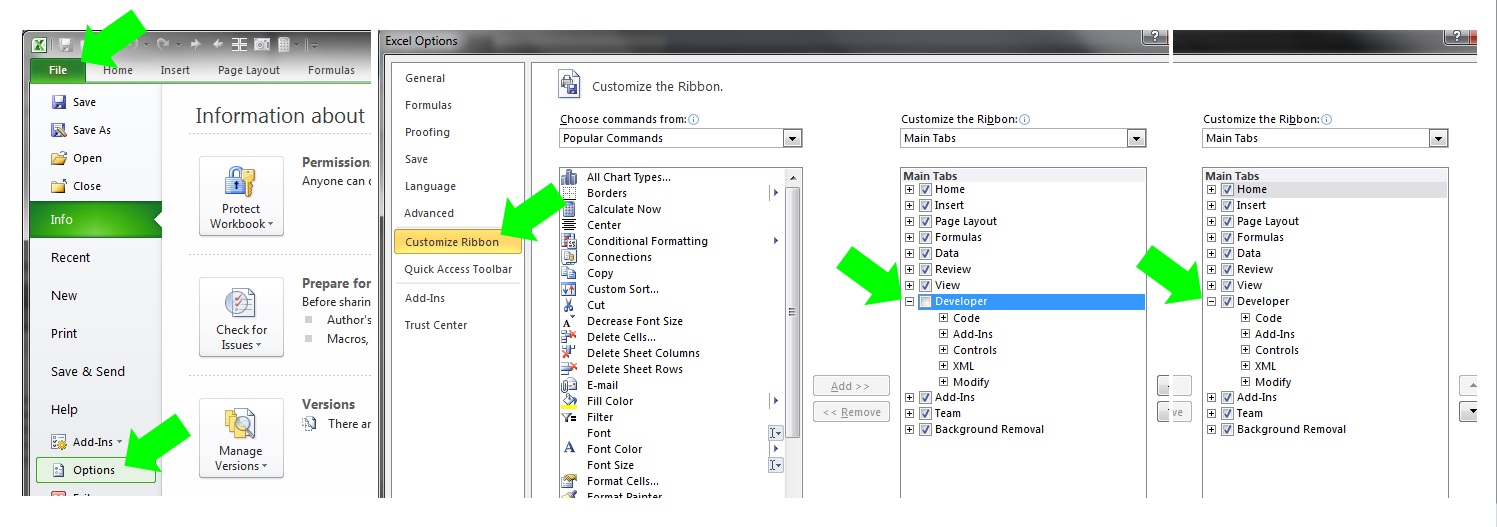
Open the file and the developer tab

File >> Options >> Customize Ribbon >> Developer

Look for Module 1 and find the VBA labelled “Sub OpenFileList_User_Entry()”. The sub is the same code as above. Once you are in the code, you will see the red text that needs to be updated:

TextImport1

Update the file path to the location you will have your files and batch file at.

The VBA code will pull in all files in the directory you declare. Please note that there is the chance you will bring in non-excel files depending on how you wrote your batch file. The batch file should limit to .xls type files, but always check to be sure the command *.xls? in the batch file isn’t bringing in the wrong types of files.

VBA To publish a Batch File from MS Excel

In a previous post I described how to set up a batch file to create a list of files in a directory, specifically MS Excel files.

Sample Excel file with VBA in it.

Question:

Have you ever wanted to bring the data from a set of standardized files into one file using automation?

If so, this blog represents step 2—generating the list remotely. Refer to my previous post to learn how the batch file works.

Tools: MS Excel, MS Windows

Fast Answer–MS Excel VBA Code:

Sub Build_Bat()
'
'''''''''''''''''''''''''''''''''''''''''''''''''''''''''''''''''''''''''''''''''''''''''''''''''''''''''''''''''''''''''
'
' Build_Bat generates a batch file
'
'''''''''''''''''''''''''''''''''''''''''''''''''''''''''''''''''''''''''''''''''''''''''''''''''''''''''''''''''''''''''''

Dim FileNum As Integer
Dim Filepath As String
Dim Folder As String

Filepath = <<Enter your file path here with a closing \>> & "filelist.bat"

'’’’’’’’’’’’’’’’’’’’’’’’’’’’’’’’’’’’’’’’’’’’’’’’’’’’’’’’’’’’’’’’’’’’’’’’’’’’’’’’’’’’’’’’’’’’’’’’’’’’’’’’’’’’’’’’’’’’’’’’’’’’’’’’’’’’’’
'
' Example: Filepath = "C:\Users\Alexander zbiciak\Batch Example\" & "filelist.bat"
'
'’’’’’’’’’’’’’’’’’’’’’’’’’’’’’’’’’’’’’’’’’’’’’’’’’’’’’’’’’’’’’’’’’’’’’’’’’’’’’’’’’’’’’’’’’’’’’’’’’’’’’’’’’’’’’’’’’’’’’’’’’’’’’’’’’’’’’’

'create spot for batch file

FileNum = FreeFile()

'open file

Open Filepath For Output As #FileNum

'write batch file

Print #FileNum, "pushd " & Folder
Print #FileNum, "filetorun -options"
Print #FileNum, "dir /b *.xls? > fileslist.txt"

Close #FileNum

End Sub

Before Macro is run:

After Macro is run:

How To:

First open up Excel and be sure you have the developer tab enabled in your ribbon:

File >> Options >> Customize Ribbon >> Developer

ExcelBatch3

Select the Developer Tab and then the Visual Basic Icon to open your editor:

ExcelBatch4

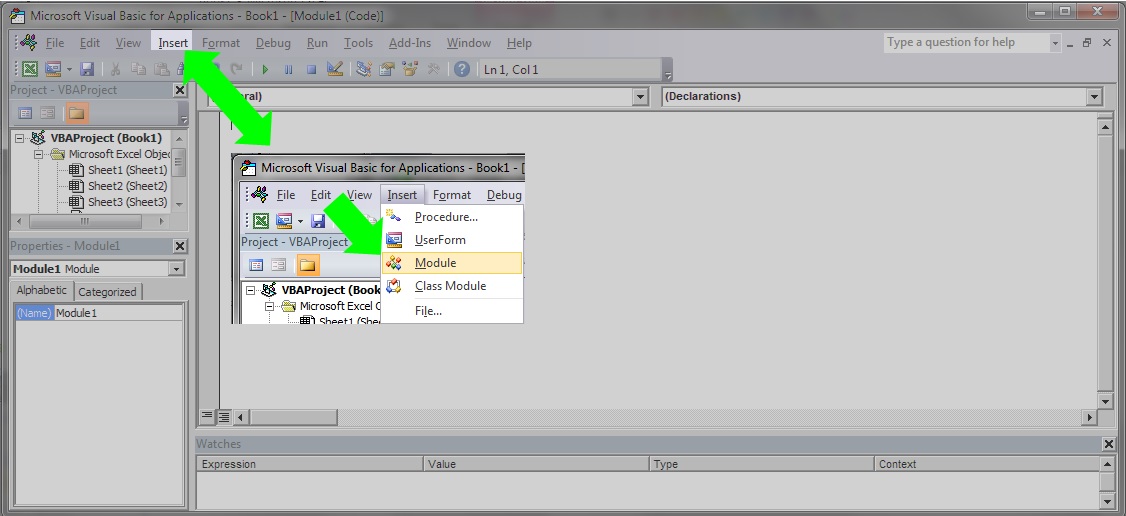
Inside the editor you will need to add a module if there are none or open one you want to add this code to:

ExcelBatch5

With your module open copy the code below and paste it in (be sure to change your file path):

Sub Build_Bat()
'
'''''''''''''''''''''''''''''''''''''''''''''''''''''''''''''''''''''''''''''''''''''''''''''''''''''''''''''''''''''''''
'
' Build_Bat generates a batch file
'
'''''''''''''''''''''''''''''''''''''''''''''''''''''''''''''''''''''''''''''''''''''''''''''''''''''''''''''''''''''''''''

Dim FileNum As Integer
Dim Filepath As String
Dim Folder As String

Filepath = <<Enter your file path here with a closing \>> & "filelist.bat"

'’’’’’’’’’’’’’’’’’’’’’’’’’’’’’’’’’’’’’’’’’’’’’’’’’’’’’’’’’’’’’’’’’’’’’’’’’’’’’’’’’’’’’’’’’’’’’’’’’’’’’’’’’’’’’’’’’’’’’’’’’’’’’’’’’’’’’
'
' Example: Filepath = "C:\Users\Alexander zbiciak\Batch Example\" & "filelist.bat"
'
'’’’’’’’’’’’’’’’’’’’’’’’’’’’’’’’’’’’’’’’’’’’’’’’’’’’’’’’’’’’’’’’’’’’’’’’’’’’’’’’’’’’’’’’’’’’’’’’’’’’’’’’’’’’’’’’’’’’’’’’’’’’’’’’’’’’’’’

'create spot for batch file

FileNum = FreeFile()

'open file

Open Filepath For Output As #FileNum

'write batch file

Print #FileNum, "pushd " & Folder
Print #FileNum, "filetorun -options"
Print #FileNum, "dir /b *.xls? > fileslist.txt"

Close #FileNum

End Sub

ExcelBatch6

Test your macro by opening the file path in the Windows file explorer. Leave this open so you can watch the VBA output:

ExcelBatch7

With the file explorer window to the side, place your cursor inside the VBA code and then click the play button:

ExcelBatch8

Congratulations—You have now published a batch file from MS Excel.

Batch for Obtaining MS Excel File List

Ever open up a folder in Windows and wonder how can I get a copy of all the file names in the folder?
Often you need a list, sometimes, you need the list to automate a process. The post will cover using Batch files for obtaining a list of Excel files.

Tools:  Windows operating system and Notepad
Application:  Windows directories and network drives*

Fast answer:

In notepad save this code as a .bat file:

pushd C:YourFilePath\Batch Example
filetorun -options
dir /b *.xls? > fileslist.txt

How To:

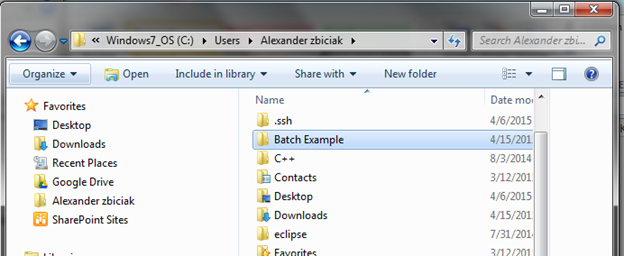
First we will create a folder for testing. I named my folder Batch Example. I placed the batch file in my directory as follows:

Batch1

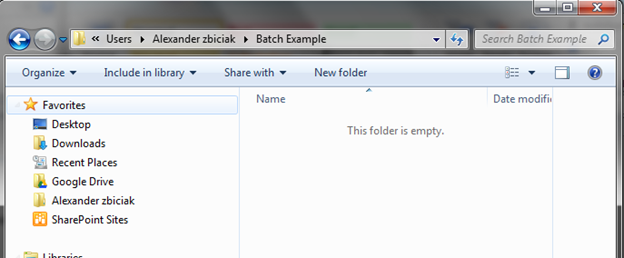
Open the folder and leave the Windows folder explorer open while you perform these next steps.

Batch2

Open Notepad:

We will use notepad to author your batch file—also referred to as a .bat file. So open your Notepad and place the following code in. (Be sure to rewrite your file path)

Code:

pushd C:<<YourFilePath>>\Batch Example
filetorun -options
dir /b *.xls? > fileslist.txt

Your code should look like the picture below except for the file path:

Batch3

Save your file as filelist.bat in the Batch Example folder:

Save As

Batch4

File name: filelist.bat and click save.

Batch5

Note: it is ok that “Save as type” still says Text Documents (*.txt)

Switch to the file explorer and you will see the batch file:

Batch6

To use the batch function you must now double click it to run it or use the command line, etc.

Go ahead and double click it:

Fileslist.txt is created

Batch7

The file will contain all of the .xls type files in the folder.

To verify open it up. You will see it is empty:

Batch8

Now add a couple test MS Excel files to the folder (must contain the file extension “.xls” or “.xls” variants: “.xlsm’, “.xlsx”, “xlsb”)

Note—you may need to turn on file extension setting to see them in the file explorer—they are there even if the extension visibility is turned off)

Here I have created several test books in different MS Excel formats:

Batch9

Double click the .bat file to run it and to make a new fileslist.txt file. After the batch file runs, open the fileslist.txt file and you will have a list of all the MS Excel ( .xls type) files:

Batch10

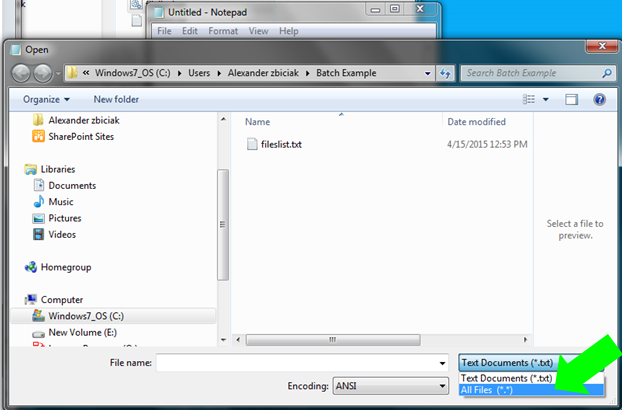
If you need to edit the batch file, you will have to open notepad first, then open the batch file from notepad.

Open Notepad
Select the correct path
Switch the Text Documents (*.txt) to All Files(*.*)

Batch11

What the Batch file is doing:

A Batch file is a list of command line commands, each line represents what you would be doing in the command prompt.

Line 1: “pushd” command

pushd C:\Users\Alexander zbiciak\Batch Example
filetorun -options
dir /b *.xls? > fileslist.txt

The pushd changes the current directory to the specified directory and stores the previous directory to popd.

In the command line the first line I typed the same string:

pushd C:\Users\Alexander zbiciak\Batch Example

The Command line shows the directory to be changed to:

C:\Users\Alexander zbiciak\Batch Example

Line 2: filetorun – options

pushd C:\Users\Alexander zbiciak\Batch Example
filetorun -options
dir /b *.xls? > fileslist.txt

filetorun –options is optional, the .bat will run without it.

Line 3: dir /b *.xls? >

pushd C:\Users\Alexander zbiciak\Batch Example
filetorun -options
dir /b *.xls? > fileslist.txt

dir /b *xls? > will search the directory for files containing the string .xls and write them to the fileslist.txt file.

The * will allow anything to be in front of the .xls
The ? will only allow up to one character after the .xls
The control helps avoid pulling in non-Excel files. In the picture you can see some unfortunately named text files, but they are not brought into the fileslist.txt file:

Batch13

The batch file ignored “xls.txt and xlsb.xls.txt” You can see the file output in the preview window to the right.

See it in action at the command prompt:

Start over with no batch file or fileslist.txt file in the directory—if we were to run the commands we would see the following:

pushd C:\Users\Alexander zbiciak\Batch Example

Batch14

dir /b

Batch15

dir /b *.xls?

Batch16

dir /b *.xls? Limited the output to only .xls type files

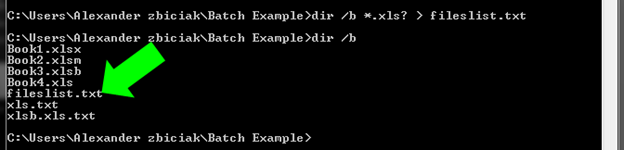
dir /b *.xls? > fileslist.txt
dir /b

Batch17

Adding in the >fileslist.txt will assign the list to a textfile names fielslist.txt

For more information see also:

https://technet.microsoft.com/en-us/library/bb490890.aspx

Vlookup: Learn it, Love it and leave it Part 3 –False Versus True

Data is only as good as the preparation!

  • What happens if we do not force Excel to return the exact data we want?
  • What about looking up an item when there may be more than once instance of it?
  • Troubleshooting data—Can you do it when you are accustomed to using the formula building dialogue box?

To help limit errors we can use three helpful keys to avoid reporting incorrect data:

False versus True
Unique Keys
In Cell / Formula Bar editing versus CTRL+A Dialogue editor

We will discuss False versus True in this post. Download and open this Excel file and follow along.


False versus True:

If you need data integrity, always use False in the [Range_Lookup] section of the Vlookup.

Excel’s formula is broken down as such:

vlookup(Lookup_value, table_array,col_index_num, [range_lookup])

[range_lookup] is bracketed meaning it is optional, yet it determines if the result is exact or a close

True: Returns an approximate match = dangerous when reporting data

Blank: Appears to default to TRUE

False: Returns data only if the lookup value exists, which runs the risk of a #N/A as a result, and ONLY finds the first instance of the lookup value

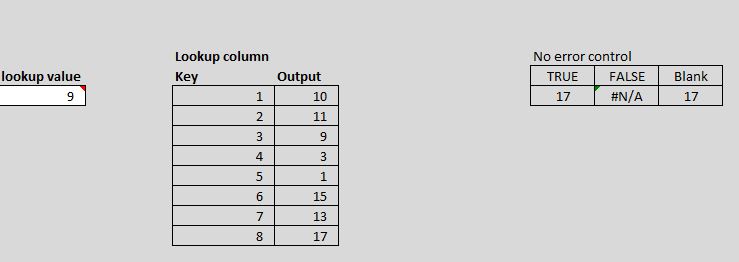
Vlookup True False Blank

9 is the lookup value. Which output would you report to your boss?

 Why would people use True?

A possible reason includes avoidance of the #N/A result which can disrupt sums, counts and other formulas.

Another is when the source is sorted–you can find something close.

Close / Approximate / Incorrect output could  drastically alter sums, counts, etc.—and the end user doesn’t even know. Which is worse? #NA or incorrect data?

Takeaway: Avoid TRUE unless you have a specific case to use it.

Ideal  formula would look like this:

VLOOKUP(A3,C3:D10,2,FALSE)

To avoid the #N/A add in error control using Iferror or other If statement constructs:

=Iferror(value, value_if_error)

            value_if_error setting:

Null version:   =Iferror(vlookup(A3,C3:D10,2,FALSE),””)

Zero Version:  =Iferror(vlookup(A3,C3:D10,2,FALSE),0)

Adding in Error control cleans the output

Adding in error control cleans the output. I used the “” or Null method to generate a blank. Using Zero may imply a different meaning.

Note:  the method chosen should account for what formulas if any may rely on the output—a null is not the same as a zero when determining averages, counts, etc. Refer to the example Excel file to see the consequences of True/Blank versus False and the Zero versus Null on reporting. Always run sample checks for proper averages, counts etc. Know the question you wish to answer to determine Zero or Null in error control.

IF” constructs (Previous functions work in current versions of Excel):

Pre 2007/10 and forward:

=IF(ISERROR (value))

https://support.office.com/en-AU/article/iserror-function-6a5f3e99-40bc-43ce-a7c8-e79b7b6af5d5

2007/2010 and forward:

=IFERROR(value,value_if_error)

https://support.office.com/en-AU/article/iferror-function-f59bacdc-78bd-4924-91df-a869d0b08cd5

2013:

=IFNA(value, value_if_na)

https://support.office.com/en-au/article/IFNA-function-6626c961-a569-42fc-a49d-79b4951fd461


You are now on your way to sourcing the intended data and not accidentally retrieving unintended data. Look for my next posts on Unique Keys and learning to edit formulas directly in cell or via the formula bar instead of the formula building dialogue box.

Vlookup: Learn it, Love it and Leave it… Part 2 Enhancements

In Part 2, I showed you how to add the dynamic aspects to a Vlookup formula, but we left a lot of room for error. In particular the user may enter data that cannot be found in the data. I showed how entering an “a” for item # failed, likewise the user may wish to enter January, not knowing or realizing Jan is the column header. Part 2 Enhancements shows you how to add validation rules to speed reporting by helping the user enter only what is needed.


Tools to be used: Data Validation.


First we want to be sure that the user only selects valid data.

To do this we will look at our two selections we made Item # and Month in cells C16 and D16. Select cell C16 and then go to:

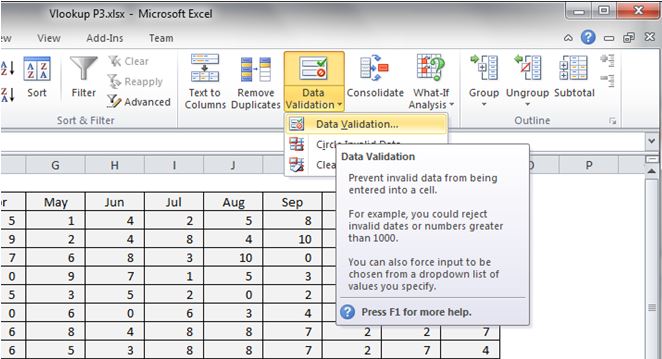
Ribbon Data tab >> Data Validation >> Validation Criteria >> select List

Click on Data Validation to open the contextual/dialogue box for your inputs:

DataValidation

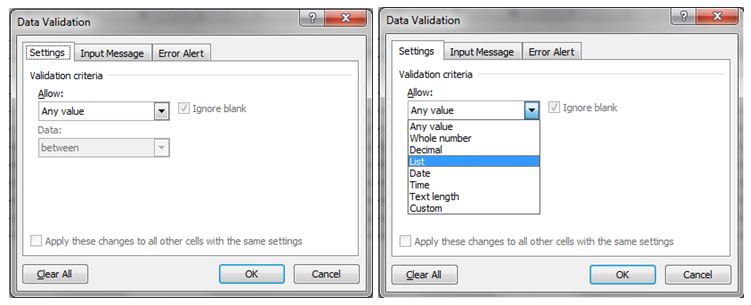
 In the dialogue box navigate to the Allow: box.

Use selection box by activating the drop down and then select List.

DataValidationList

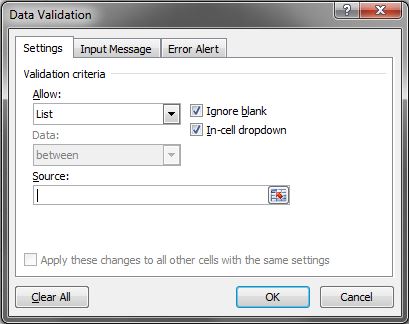
In Source:  enter the limited range (array) that has all of your items.

Data Validation List Source

For this example we will use the data table itself. In more advanced files we would use a control table to limit our possible items from a master list.

We will enter: $A$3:$A$12.


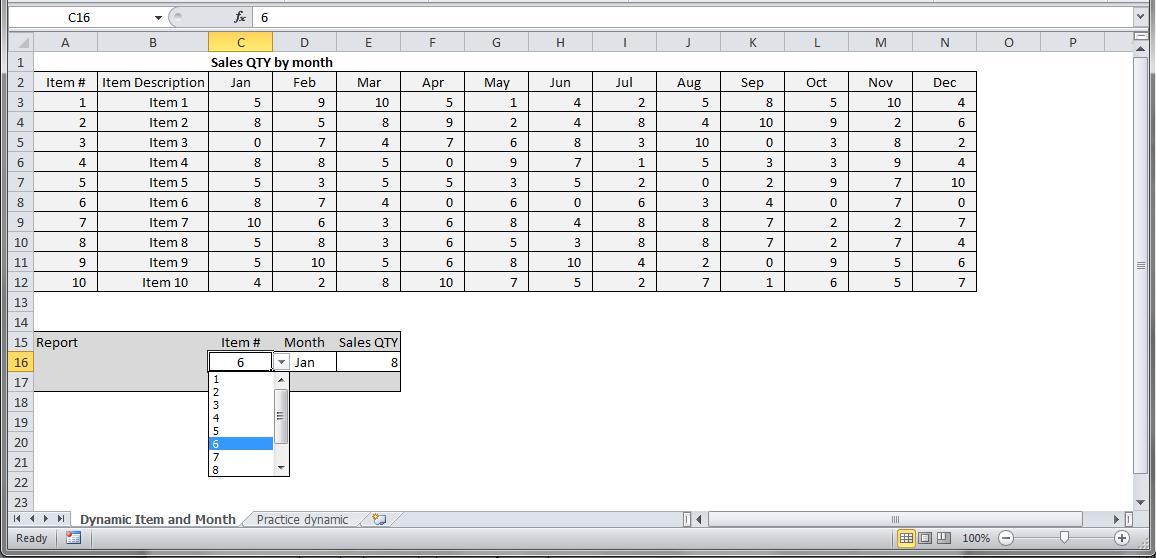
Once you hit enter, the cell C16 will now show a drop down arrow allowing you to select only what is in the list you referenced.

Data Validated Cell


You can do the same for the Months by selecting cell D16 and applying the list limitation with the source set to $C$2:$N$2. You can either manually type this or select the range with your mouse. Use the Practice tab of the linked file to build your own.


Congratulations, you have now limited the user entries and also helped ensure they are selecting the right items. You are on your way to building reports.