Ever open up a folder in Windows and wonder how can I get a copy of all the file names in the folder?
Often you need a list, sometimes, you need the list to automate a process. The post will cover using Batch files for obtaining a list of Excel files.
Tools: Windows operating system and Notepad
Application: Windows directories and network drives*
Fast answer:
In notepad save this code as a .bat file:
pushd C:YourFilePath\Batch Example
filetorun -options
dir /b *.xls? > fileslist.txt
How To:
First we will create a folder for testing. I named my folder Batch Example. I placed the batch file in my directory as follows:
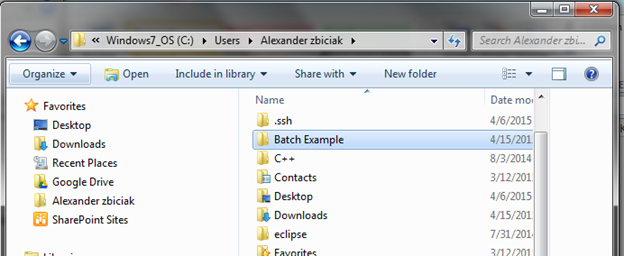
Open the folder and leave the Windows folder explorer open while you perform these next steps.
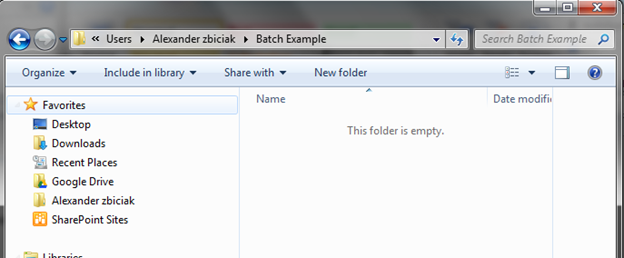
Open Notepad:
We will use notepad to author your batch file—also referred to as a .bat file. So open your Notepad and place the following code in. (Be sure to rewrite your file path)
Code:
pushd C:<<YourFilePath>>\Batch Example
filetorun -options
dir /b *.xls? > fileslist.txt
Your code should look like the picture below except for the file path:

Save your file as filelist.bat in the Batch Example folder:
Save As

File name: filelist.bat and click save.

Note: it is ok that “Save as type” still says Text Documents (*.txt)
Switch to the file explorer and you will see the batch file:

To use the batch function you must now double click it to run it or use the command line, etc.
Go ahead and double click it:
Fileslist.txt is created

The file will contain all of the .xls type files in the folder.
To verify open it up. You will see it is empty:

Now add a couple test MS Excel files to the folder (must contain the file extension “.xls” or “.xls” variants: “.xlsm’, “.xlsx”, “xlsb”)
Note—you may need to turn on file extension setting to see them in the file explorer—they are there even if the extension visibility is turned off)
Here I have created several test books in different MS Excel formats:

Double click the .bat file to run it and to make a new fileslist.txt file. After the batch file runs, open the fileslist.txt file and you will have a list of all the MS Excel ( .xls type) files:

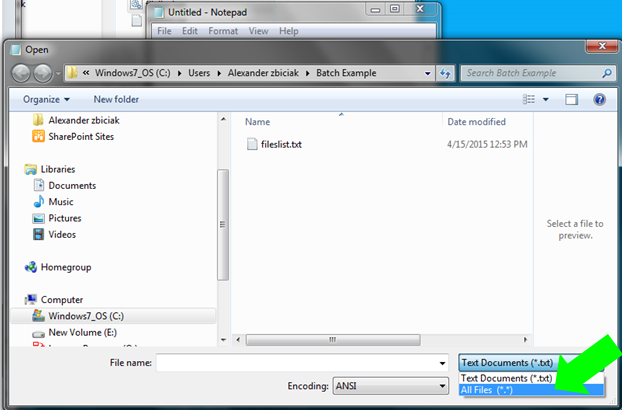
If you need to edit the batch file, you will have to open notepad first, then open the batch file from notepad.
Open Notepad
Select the correct path
Switch the Text Documents (*.txt) to All Files(*.*)
What the Batch file is doing:
A Batch file is a list of command line commands, each line represents what you would be doing in the command prompt.
Line 1: “pushd” command
pushd C:\Users\Alexander zbiciak\Batch Example
filetorun -options
dir /b *.xls? > fileslist.txt
The pushd changes the current directory to the specified directory and stores the previous directory to popd.
In the command line the first line I typed the same string:
pushd C:\Users\Alexander zbiciak\Batch Example
The Command line shows the directory to be changed to:
C:\Users\Alexander zbiciak\Batch Example

Line 2: filetorun – options
pushd C:\Users\Alexander zbiciak\Batch Example
filetorun -options
dir /b *.xls? > fileslist.txt
filetorun –options is optional, the .bat will run without it.
Line 3: dir /b *.xls? >
pushd C:\Users\Alexander zbiciak\Batch Example
filetorun -options
dir /b *.xls? > fileslist.txt
dir /b *xls? > will search the directory for files containing the string .xls and write them to the fileslist.txt file.
The * will allow anything to be in front of the .xls
The ? will only allow up to one character after the .xls
The control helps avoid pulling in non-Excel files. In the picture you can see some unfortunately named text files, but they are not brought into the fileslist.txt file:

The batch file ignored “xls.txt and xlsb.xls.txt” You can see the file output in the preview window to the right.
See it in action at the command prompt:
Start over with no batch file or fileslist.txt file in the directory—if we were to run the commands we would see the following:
pushd C:\Users\Alexander zbiciak\Batch Example

dir /b

dir /b *.xls?

dir /b *.xls? Limited the output to only .xls type files
dir /b *.xls? > fileslist.txt
dir /b
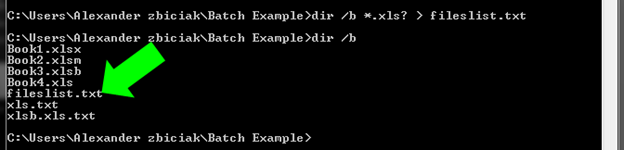
Adding in the >fileslist.txt will assign the list to a textfile names fielslist.txt
For more information see also:
 Excel-i-rate
Pingback: VBA To publish a Batch File from MS Excel | Excel-i-rate
Pingback: Use VBA to Pull a Text file into Excel | Excel-i-rate